
Rclone is an extremely handy tool for syncing data between dozens of data storage types. The support list includes SFTP servers, S3 buckets, popular services like Google Drive, Dropbox, Box, and many other options.
Rclone’s rich feature set, command-line interface, and availability for all major platforms make it almost ideal for building transfer automations between arbitrary storage and SFTP To Go.
The most convenient way to use rclone for syncing is to save configurations of storage locations and use their short aliases instead of submitting lengthy credentials every time. These saved configurations are called remotes, and this guide explains how to create a remote for SFTP To Go.
You may also want to explore how to sync local files with SFTP using Rclone.
Remotes at a glance
In rclone’s terminology, a remote is a named configuration of one storage location. This configuration typically includes some form of credentials, such as a username, a password, an endpoint URL, and so on. Each storage type has its own set of settings. The name of a remote is also its alias that you can use like this:
rclone sync gdrive:invoices/ sftptogo:invoices/This command instructs rclone to run a one-way sync between invoices folders on Google Drive and an SFTP To Go account. Rclone reads the two aliases, gdrive and sftptogo, and extracts all the information it needs to authenticate and move files from one location to another.
Remotes’ configuration is stored in a user’s home directory in a plain-text file. Passwords and passphrases are automatically saved in an obfuscated form made with AES and a hardcoded key.
Gathering information
Before you create a new remote for SFTP To Go, collect all the information you will need:
- host name
- user name
- SSH key file location
- SSH key file passphrase
Log in to your SFTP To Go account, go to the Credentials tab, find your username in the list, and click on the arrow icon to expand the section with account details:
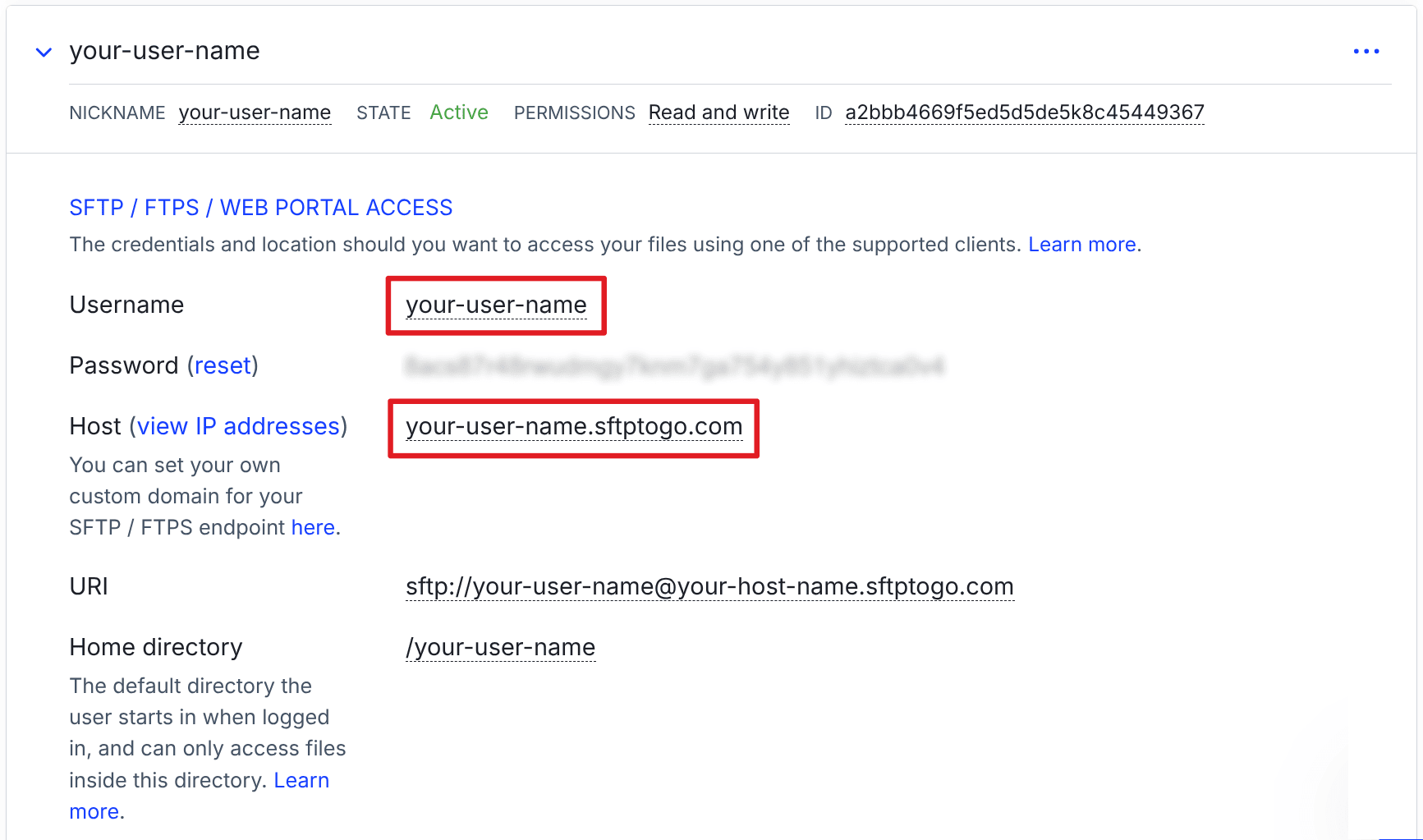
You can get away with using just your credentials’ password from SFTP To Go. However, we strongly recommend SSH key authentication, so you will need to specify the key file location and the passphrase for your key. Check out our in-depth guide: SFTP Security: Is SFTP Secure Enough for Sensitive Files?
Creating a remote for SFTP To Go
Assuming you already have rclone installed on the computer you will be running rclone on, let’s create a remote for your SFTP To Go account. There are two popular ways to do that:
- Running
rclone configstarts a command-line wizard that will ask you questions and generate a configuration. - Running the
rclone config createcommand and specifying all credentials on the command line.
Let’s use the latter method for brevity’s sake. Here is what the command will look like:
rclone config create sftptogo sftp \
  host YOUR_HOST_NAME.sftptogo.com \
  user YOUR_USER_NAME \
  key_file ~/.ssh/id_ed25519 \
  key_file_pass iebi3b$o0oSh
This creates a new remote called sftptogo of the sftp type, specifies the host and the username, the location of the private SSH key, and the key passphrase.
Alternatively, you can use your SFTP To Go account’s username and password:
rclone config create sftptogo sftp \
  host YOUR_HOST_NAME.sftptogo.com \
  user YOUR_USER_NAME \
  pass"YOUR_PASSWORD \
  port 22
Once the new remote is created, rclone will output a quick summary that will look like this:
[sftptogo]
type = sftp
host = YOUR_HOST_NAME.sftptogo.com
user = YOUR_USER_NAME
key_file = /home/user/.ssh/id_ed25519
key_file_pass = *** ENCRYPTED ***
See if all the details you specified are correct. If you made a mistake, you can easily remedy it with either rclone config (see the documentation for details) or by editing the rclone configuration file (e.g. ~/.config/rclone/rclone.conf) in a text editor.
Testing the remote
Now that you have created the remote, try accessing it to see if everything is right. The easiest way to do that is to list all folders in your account with the rclone lsd sftptogo: command. If you have any folders there, you will see something like this:
rclone lsd sftptogo:
          -1 1970-01-01 01:00:00        -1 inbound
          -1 1970-01-01 01:00:00        -1 archive
This means all the credentials are correct, and the connection works.
Hardening access to SFTP To Go
Even when rclone uses SSH keys for authentication, it does not attempt to verify if the remote host is legit unless specifically instructed otherwise. This creates a possibility of a man-in-the-middle attack. To reduce the possibility of this ever happening, we recommend that you force rclone to use SSH’s known_hosts file.
First, connect to SFTP To Go with SSH to have its host added to the known_hosts file:
ssh-keyscan YOUR_HOST_NAME.sftptogo.com >> ~/.ssh/known_hostsThis creates the baseline for SSH to match the public key against.
Assuming you already created a remote for SFTP To Go, do this next:
rclone config update sftptogo known_hosts_file ~/.ssh/known_hostsThis command will update the existing remote’s configuration to include the path to the known_hosts file. Once it’s done, rclone will try to match the remote host’s (SFTP To Go) public SSH key to its public SSH key from previous connections. If the keys don’t match, the connection will abort, and no data will be transferred.
Wrapping up
Rclone’s remotes are a tremendous help in keeping transfer automations lean and human-readable. If you are interested in learning more about using this handy tool, check out our guide on syncing anything to SFTP To Go with rclone.
Frequently asked questions
Which is the preferred way to create a new rclone remote: with the wizard or with command-line flags?
Both methods have their pros and cons. The CLI flags approach may seem faster when you know what flags to use. The wizard may seem more user-friendly, plus your credentials will not be stored in the shell history. Ultimately, it’s up to you and the security protocols you have to follow.
Do I need an SSH key to connect rclone to SFTP To Go, or can I just use my password?
You can use a password, but the recommended way is to use an SSH key and a passphrase for authentication.
Does rclone verify the host?
By default, rclone doesn’t attempt to verify if the host it’s connecting to is genuinely what it claims to be. This creates a possibility for an attacker to intercept the connection. When you point rclone to your SSH known_hosts file, it will verify the host’s public SSH key against a previously trusted connection.
Where does rclone store my credentials, and are they secure?
Remote configurations are stored in your user’s home directory (e.g., ~/.config/rclone/rclone.conf). Passwords and key passphrases are obfuscated with AES and a hardcoded key. It’s enough to prevent them from being visible in plain sight.
I made a typo when creating my remote. Do I need to delete and recreate it?
This isn’t necessary. You can run rclone config and use the wizard to edit an existing remote. Alternatively, you can open the configuration file in a text editor and fix the typo.