
Tools like Chronosync, FreeFileSync, and WinSCP do their job well when you need to sync a local folder with an SFTP server. The moment Dropbox enters the picture, none of them can help you. That’s where rclone comes in.
Rclone can run on any desktop computer or server, supports over a hundred file storage services, including Dropbox and SFTP To Go, and can be automated with scripts and CI.
This guide walks through creating a Dropbox remote, running your first one-way and two-way sync with SFTP To Go, filtering which files get transferred, and troubleshooting potential issues.
Install rclone
To follow the article, install rclone. Go to https://rclone.org/downloads/, download the program for your operating system, and follow the installation instructions on that page.
Rclone in a nutshell
Rclone is a flexible command-line tool that executes file operations using a straightforward syntax: rclone <command> <source> <destination> [flags]. Here is a syncing example:
rclone sync source:path destination:path [flags]Locations in rclone are called remotes. They are saved configurations for your storage endpoints. For example, syncing two cloud endpoints looks like this:
rclone sync dropbox:contracts/ sftptogo:contracts/Here, rclone identifies updated or new files in Dropbox's contracts folder and pushes them to SFTP To Go.
Beyond basic file operations, the same CLI application handles administrative functions like hosting local files over HTTP or modifying remote configs. It also supports service-native features, such as clearing Google Drive trash or deleting incomplete S3 uploads. With support for over 100 backends, rclone is a pretty much anything-to-anything syncing solution for moving enterprise files around.
Creating remotes
To follow along, you are going to need two remotes: one for Dropbox and one for SFTP To Go. For the latter, we’ve already covered extensively how to create a remote for SFTP To Go in an earlier article. Please follow it and then get back here to continue with creating a remote for Dropbox.
With rclone, you can use either its default Dropbox API app key built into rclone’s binary or use a custom one. Using the default app key means sharing the available rate limits with all other users of that key. So it’s best to create your own app and get a custom client_id and client_secret to get better throughput.
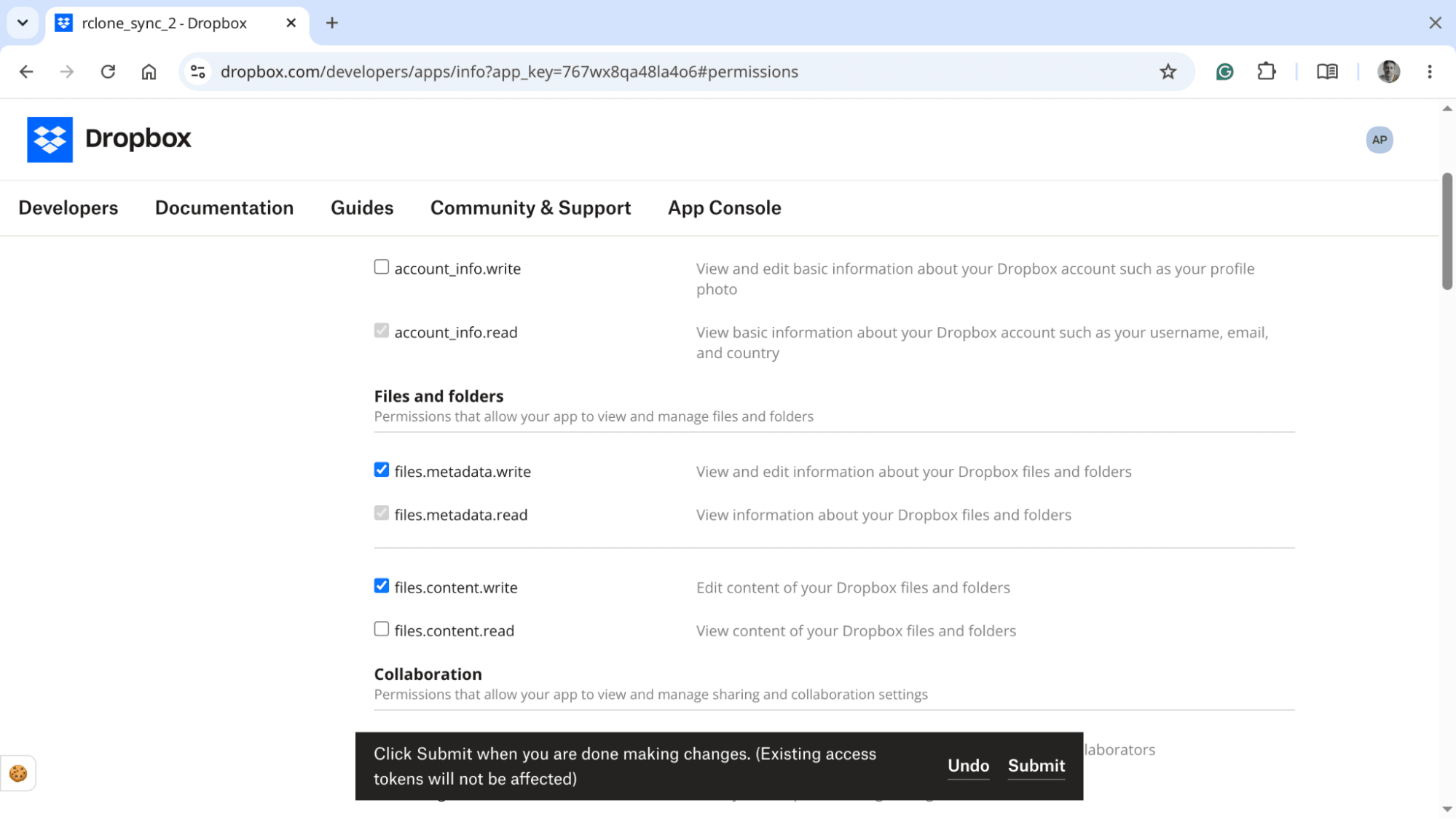
In the Permissions tab, check files.metadata.read, files.content.read, and files.content.write boxes, then click on Submit.
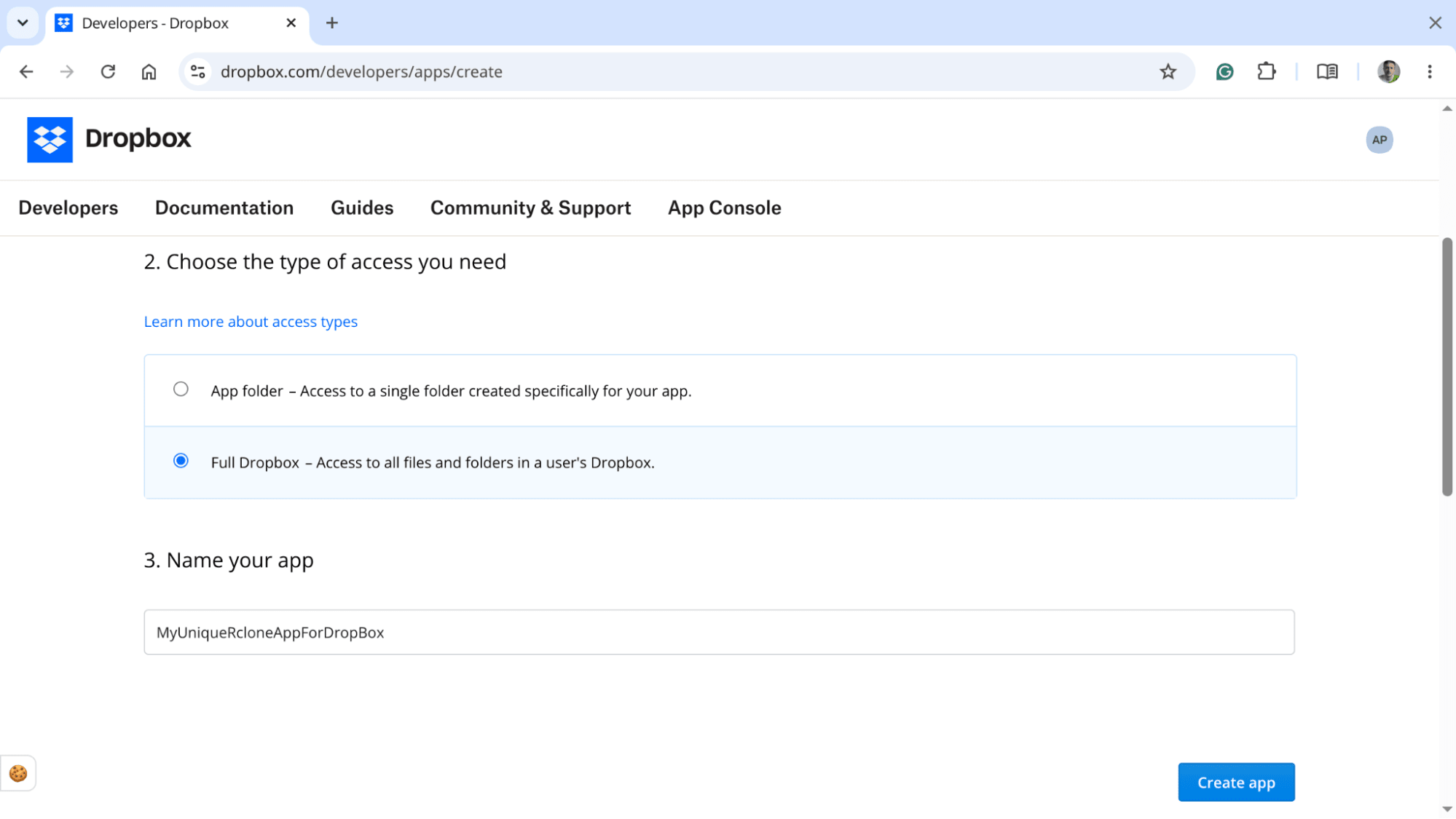
Name your application and click Create App. Note that most likely names like rclone and rclone_sync will already be taken by other users, so you’ll have to get a little creative.
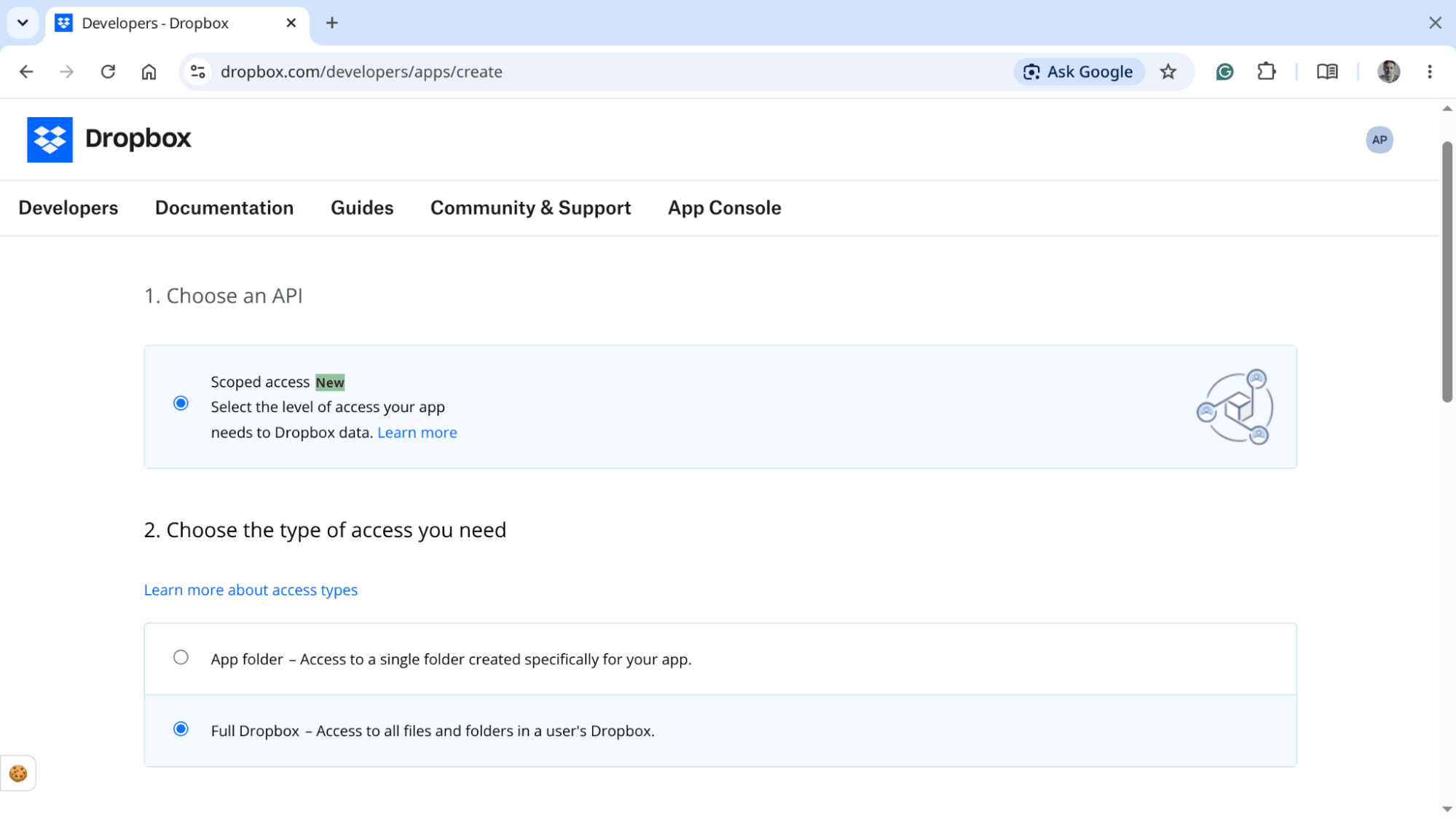
Click on Create App, choose Scoped Access, and select Full Dropbox (or App Folder, if that’s a better match for your needs).
Go to the Dropbox App Console.
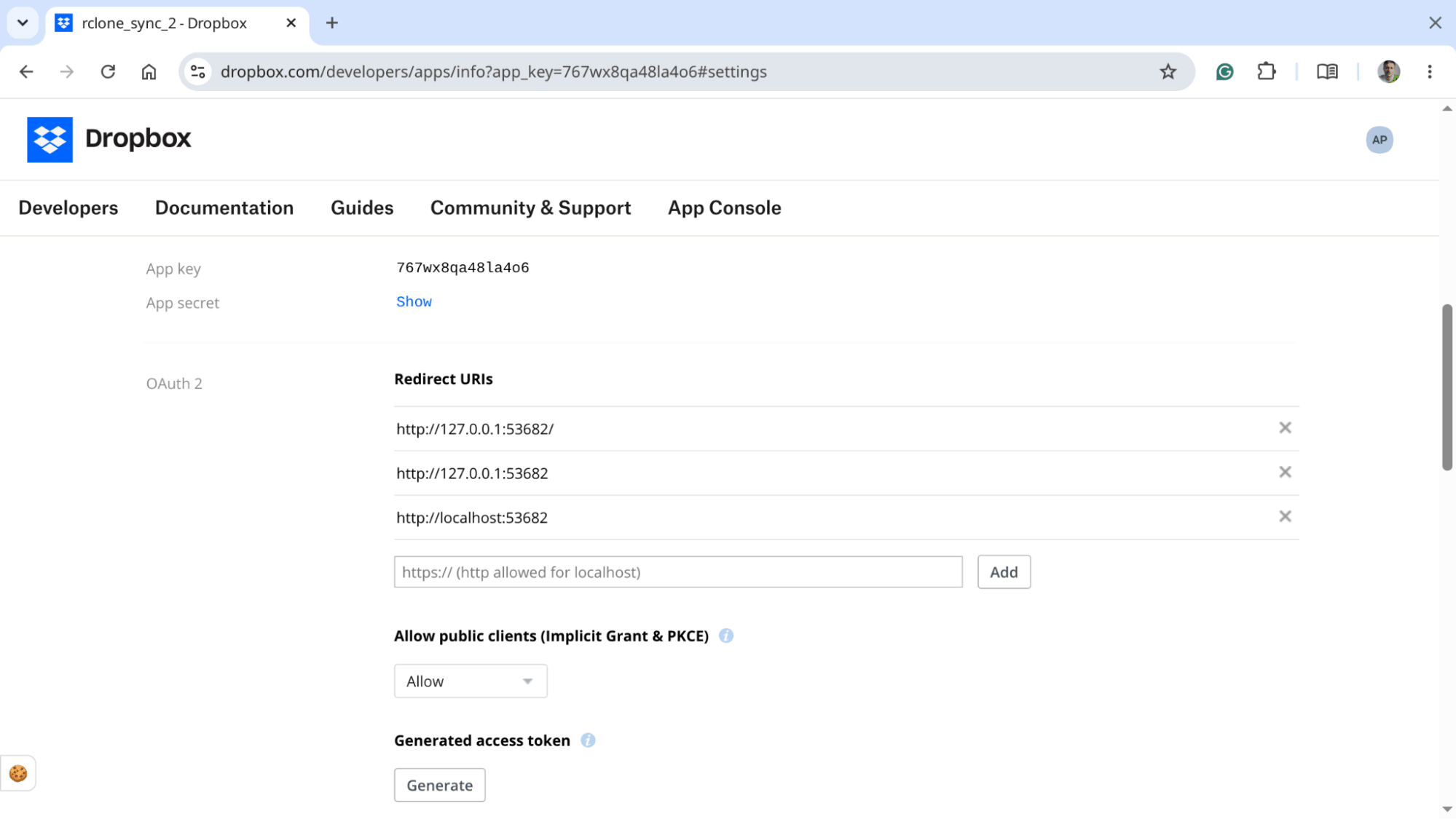
Add http://127.0.0.1:53682/ and http://localhost:53682/ to the Redirect URIs section. This is because rclone runs a temporary web server during the authorization process. If you don’t add its URL to the Redirect URIs section, Dropbox will block the request and show a Redirect URI mismatch error in your browser. All three options are possible for rclone, so add all of them.
Switch back to the Settings tab and locate the app key and app secret. Copy and paste them somewhere safe, as you’ll need them soon enough.
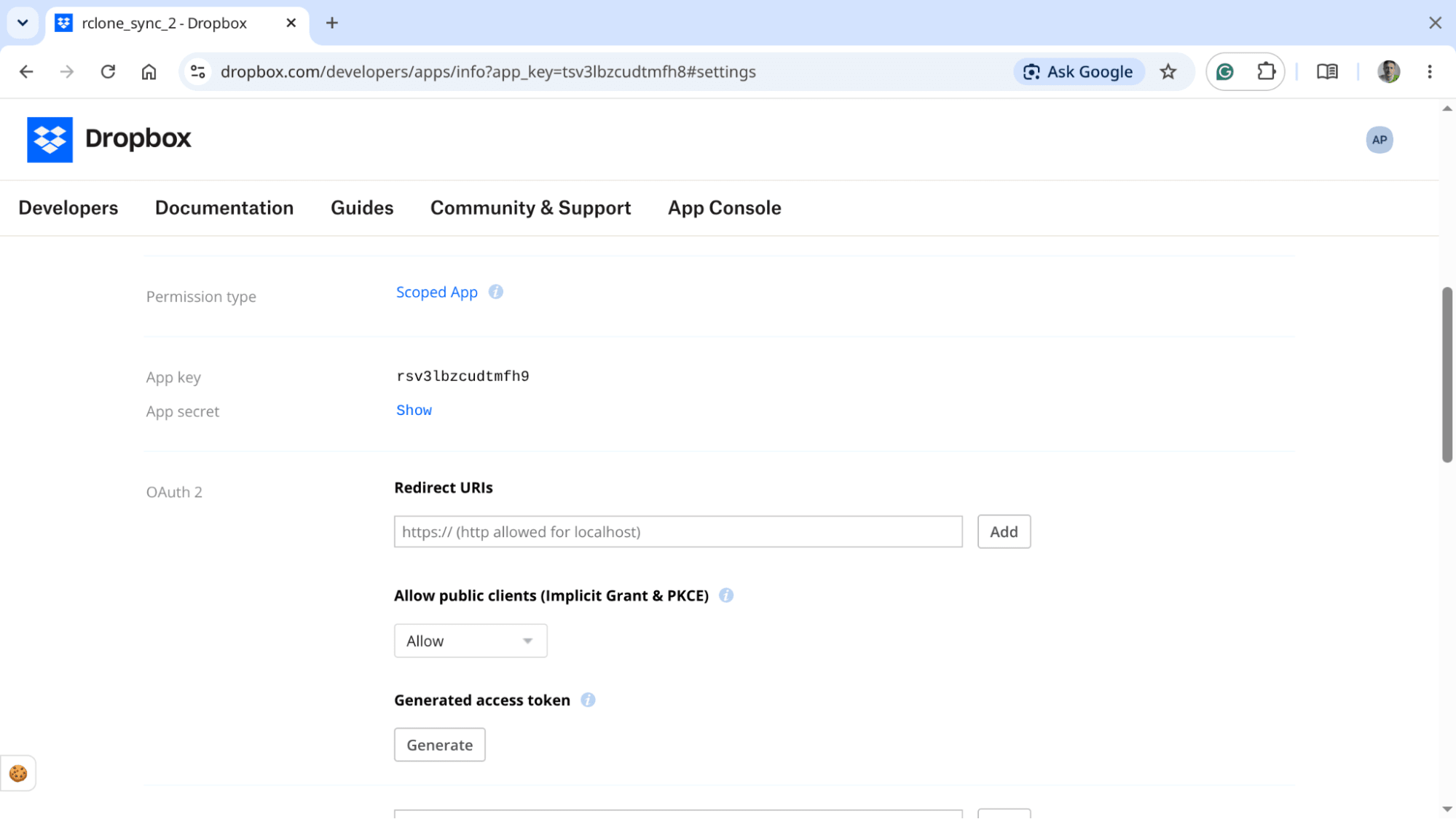
Now, find the app key and app secret on the Settings page of your newly created Dropbox app and use them to authorize rclone to access your Dropbox files:
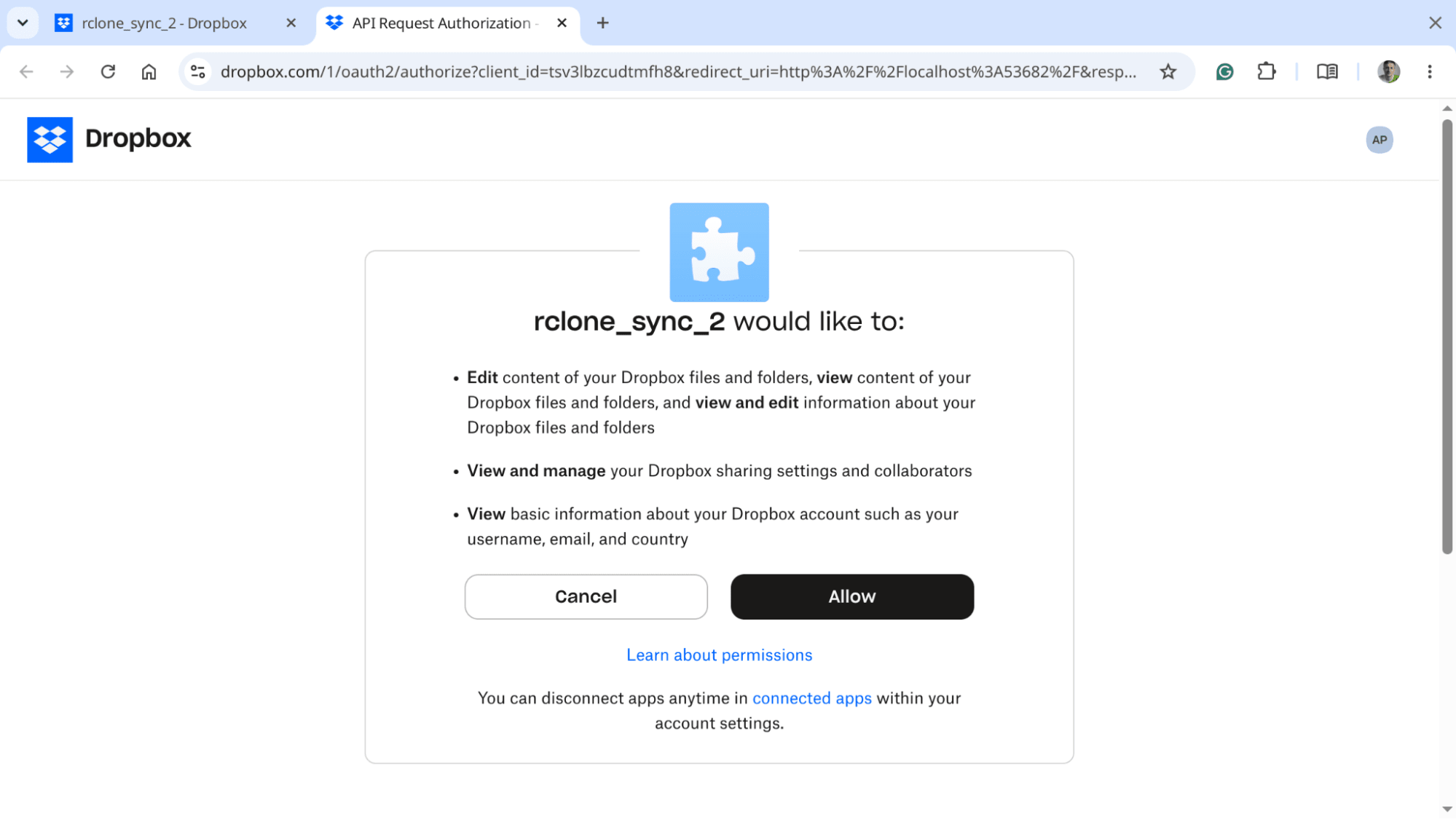
rclone authorize "dropbox" "YOUR_APP_KEY" "YOUR_APP_SECRET"This will launch the authorization process in the browser:
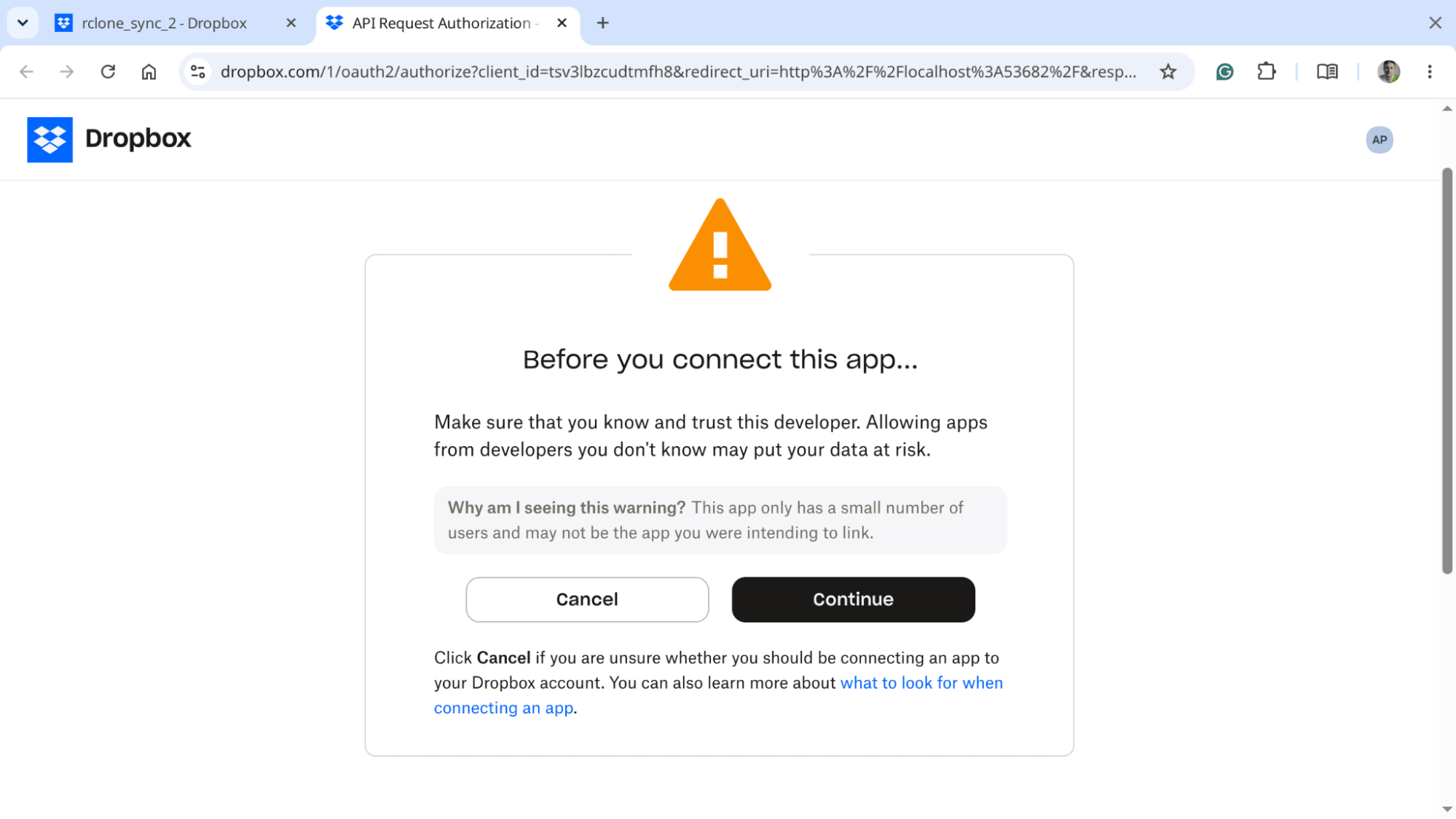
Click Continue and then Allow:
After you see “Success! All done. Please go back to rclone”, go back to the terminal window where you will see the authorization token in the program’s output.
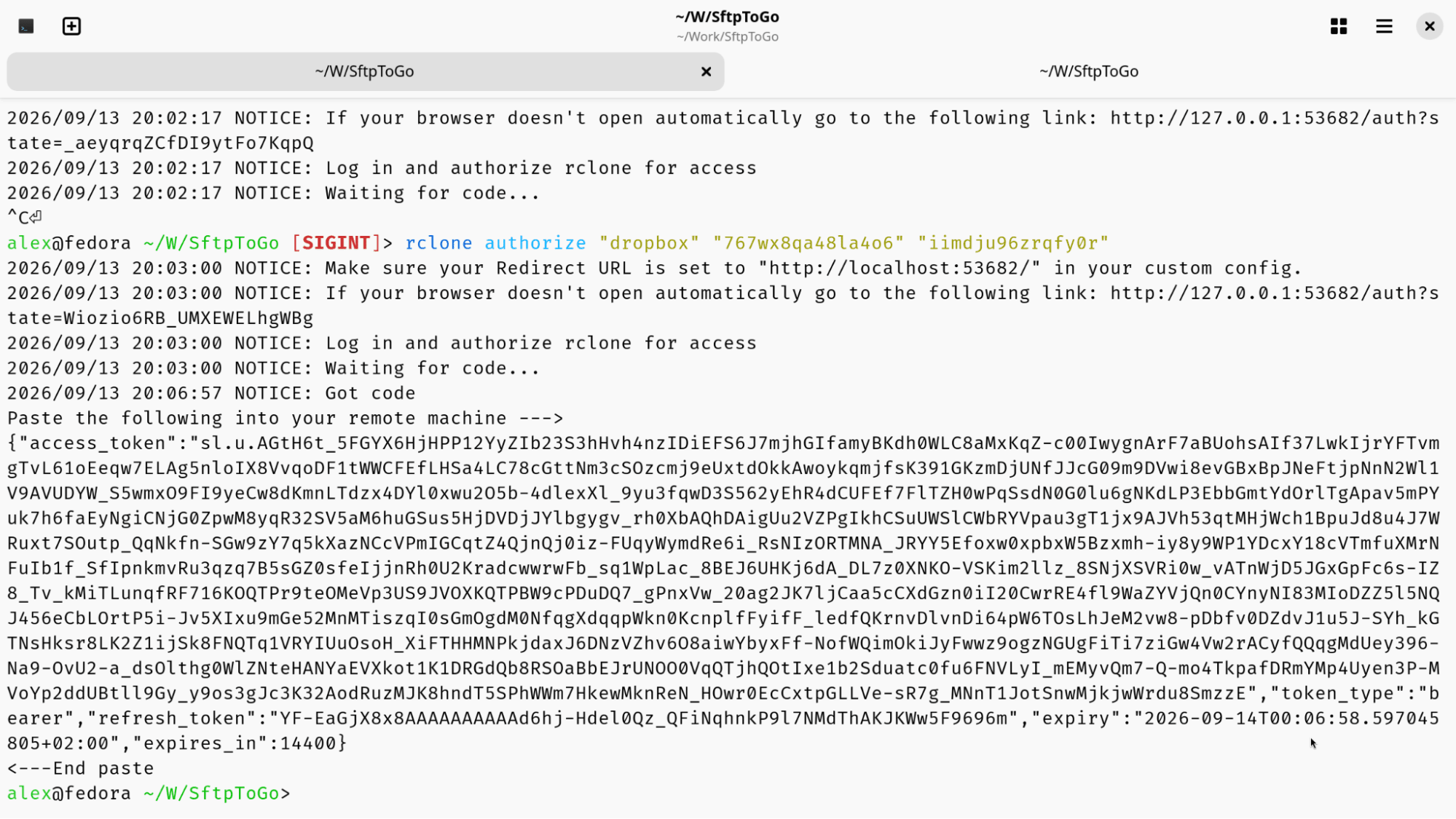
Let’s use the app key, app secret, and newly generated authorization token to create a remote:
rclone config create dropbox dropbox \
  client_id "YOUR_APP_KEY" \
  client_secret "YOUR_APP_SECRET" \
  token "YOUR_JSON_TOKEN_STRING"
This will open a new window to reauthorize rclone. Click on Allow, and you are done. Rclone will display a summary about the newly created remote:
[dropbox]
type = dropbox
client_id = 767wx8qa48la4o6
client_secret = iimdju96zrqfy0r
token = {"access_token":"{redacted}","token_type":"bearer","refresh_token":"BsrqxZnhHDAAAAAAAAAAAR-KGTTCYDskf448pl2kdXM5ejno9KAmkksC1S1tBua2","expiry":"2026-09-14T00:11:59.41125095+02:00","expires_in":14400}
You can test the connection now:
rclone lsd dropbox:
          -1 2000-01-01 01:00:00        -1 data
          -1 2000-01-01 01:00:00        -1 documents
          -1 2000-01-01 01:00:00        -1 media
          -1 2000-01-01 01:00:00        -1 outbox
          -1 2000-01-01 01:00:00        -1 web
          -1 2000-01-01 01:00:00        -1 work
Setting up the remote has been successful. Let’s get on with the basics of copying files from Dropbox to SFTP To Go.
Create folder structure
Let’s assume that all files coming from Dropbox need to end up in a folder named inbound in your home directory on SFTP To Go.
Now that you have Rclone configured to interact with your SFTP To Go account, there’s no need to log into the web panel. Simply do this:
rclone mkdir sftptogo:inboundVerify if this worked as expected:
rclone lsd sftptogo:
         -1 1970-01-01 01:00:00        -1 inbound
Now, repeat to create another folder named archive. This is where approved files will be stored.
This will be sufficient for the purpose of this guide.
One-way sync: Dropbox to SFTP To Go
In a one-way sync operation, rclone ensures the destination directory matches the source precisely. It transfers any missing or updated files from the origin and removes items from the destination that are no longer present at the source (or were never present there).
The easiest way to see this in action is to copy files from source to destination, remove a copied file on the destination remote, and then run a one-way sync again.
Start with an initial copy:
rclone copy dropbox:inbound/ sftptogo:inbound/ --dry-run
2026/07/29 17:34:39 NOTICE: records/invoice_03.pdf: Skipped copy as --dry-run is set (size 31.326Ki)
2026/07/29 17:34:39 NOTICE: records/invoice_04.pdf: Skipped copy as --dry-run is set (size 30.244Ki)
2026/07/29 17:34:39 NOTICE: records/invoice_05.pdf: Skipped copy as --dry-run is set (size 31.545Ki)
2026/07/29 17:34:39 NOTICE: records/invoice_06.pdf: Skipped copy as --dry-run is set (size 31.443Ki)
2026/07/29 17:34:39 NOTICE: records/invoice_01.pdf: Skipped copy as --dry-run is set (size 31.042Ki)
2026/07/29 17:34:39 NOTICE: records/invoice_02.pdf: Skipped copy as --dry-run is set (size 29.877Ki)
2026/07/29 17:34:39 NOTICE: records/invoice_07.pdf: Skipped copy as --dry-run is set (size 30.019Ki)
The --dry-run flag does exactly what it says on the tin: emulates a real operation with all the warnings and error messages you’d see if you ran it without the flag. It may look like a kind of helicopter parenting, but it’s how you avoid costly mistakes. Rclone is not very forgiving and deletes files for good when it needs to. It’s best not to learn that the hard way.
If you haven’t encountered any issues during the dry run, repeat the copying without that flag:
rclone copy dropbox:inbound/ sftptogo:inbound/ -vYou can verify whether the files have arrived at the destination by running rclone ls to list all files on the remote:
rclone ls sftptogo:inbound/
    31787 records/invoice_01.pdf
    30594 records/invoice_02.pdf
    32078 records/invoice_03.pdf
    30970 records/invoice_04.pdf
    32302 records/invoice_05.pdf
    32198 records/invoice_06.pdf
    30739 records/invoice_07.pdf
Let’s try to delete a file on the destination remote so that rclone has something to restore:
rclone delete sftptogo:inbound/records/invoice_07.pdf --dry-run
2026/08/09 17:52:28 NOTICE: invoice_07.pdf: Skipped delete as --dry-run is set (size 30.019Ki)
If you don’t see any errors or warnings in the output, repeat the command without --dry-run and sync the two remotes:
rclone sync dropbox:inbound/ sftptogo:inbound/ -v --dry-run
2026/08/09 17:58:31 INFO  : records/invoice_01.pdf: Copied (replaced existing)
2026/08/09 17:58:31 INFO  : records/invoice_07.pdf: Copied (new)
2026/08/09 17:58:31 INFO  : records/invoice_02.pdf: Copied (replaced existing)
2026/08/09 17:58:32 INFO  : records/invoice_03.pdf: Copied (replaced existing)
2026/08/09 17:58:32 INFO  : records/invoice_04.pdf: Copied (replaced existing)
2026/08/09 17:58:33 INFO  : records/invoice_05.pdf: Copied (replaced existing)
2026/08/09 17:58:33 INFO  : records/invoice_06.pdf: Copied (replaced existing)
As you can see in the output, rclone replaced the files that already existed on the destination remote and copied the file you had previously deleted on the destination remote. That makes the SFTP To Go remote a perfect mirror of the Google Drive remote.
You can also try reversing the sync direction. To do that, swap source and destination remotes:
rclone copy sftptogo:inbound/ dropbox:inbound/ -v
output
Mirroring with inclusions and exclusions
Up to now, we’ve covered syncs where every single file is copied across remotes, but in production environments, you rarely want to mirror everything blindly. Typically, you need to filter out unwanted items or isolate specific filesets.
To copy only PDF files from a local directory to SFTP To Go, use the --include flag:
rclone sync dropbox:projects sftptogo:client-deliverables --include "*.mp4"Rclone will grab every .mp4 file in the source directory and ignore all other formats.
If you want to sync a full project folder while skipping heavy raw footage, use --exclude:
rclone sync dropbox:projects sftptogo:client-deliverables --exclude "*.mov"Mixing inclusion and exclusion rules can get tricky because rclone evaluates rules top-down, using a strict "first match wins" priority.
For example, this command correctly syncs only PNG assets:
rclone sync dropbox:design sftptogo:assets --include "*.png" --exclude "*"Because --include "*.png" comes first, rclone captures PNG files, and then the --exclude "*" discards everything else.
Reversing the order breaks the sync completely:
rclone sync dropbox:design sftptogo:assets --exclude "*" --include "*.png"Since --exclude "*" matches every file immediately, the process stops there, and rclone never reaches the rule to include .png files.
As workflows expand, inline flags become hard to manage. Imagine a creative studio syncing project files to remote storage under these rules:
- Skip all massive raw footage files (
*.prores) - Skip local workspace autosaves (
/.cache/ folders) - Exception: Keep
*.proresfiles inside/campaigns/2026_superbowl/(needed for client handoff) - Include all other project files (JPEGs, project files, vector graphics)
Trying to express this logic purely with command-line flags produces a convoluted command:
rclone sync dropbox:studio_work/ sftptogo:archive/ \ --include "/campaigns/2026_superbowl/**.prores" \ --exclude ".cache/**" \ --exclude "*.prores" \ --include "**"Parsing this sequence is difficult, and adding more exceptions later quickly leads to mistakes. A cleaner solution is using the filters mechanism that combines rules in a configuration file using standard + (include) and - (exclude) prefixes:
# studio-sync-rules.txt
# Exception: preserve high-res assets for this specific campaign
+ /campaigns/2026_superbowl/**.prores
# Exclude broad working files and temp directories
- *.prores
- .cache/**
# Catch-all: sync everything else
+ **
Then you can reference this file in your sync command:
rclone sync dropbox:studio_work/ sftptogo:archive/ --filter-from studio-sync-rules.txtIn a nutshell, filters are more readable, updating them is a low-effort job, and you can manage them with Git alongside your automation code and use comments inside the text files to explain the business logic.
Two-way syncing
The job of a two-way sync is to reconcile differences between two remotes in a way that makes them a mirror of each other. Here is what this means in practice:
- If two files with the same name exist on both remotes, and one of them is newer, the newer version wins.
- If the same file is preserved on one remote and deleted on another, FIXME.
- If one file exists on one remote and never existed on the other one, that other remote also gets to have it.
Two-way sync needs a baseline to compare current states of two remotes to. Rclone creates that baseline the first time you run bisync. After that, every subsequent bisync run will update the original baseline. Let’s create that original baseline:
rclone bisync dropbox:outbound/ sftptogo:inbound/ \
  --checksum \
  --resync \
  --dry-run \
  --verbose
If you don’t see any errors in the output, repeat the command without --dry-run. Every time you run bisync after that, drop the --resync flag to avoid establishing a new baseline from scratch and doing a normal three-way comparison between the baseline, the source, and the destination.
Handling Dropbox Paper files
Rclone needs Dropbox Paper files to be converted to something else before it can copy these documents. You have a say in what file format it will use to do so:
rclone sync dropbox:Documents/ sftptogo:Documents/ --dropbox-export-formats mdThis command runs a one-way sync, and when it stumbles upon a Dropbox paper file, it triggers the conversion to Markdown and copies the .md file to the destination remote instead (the .md is intermediary and is not preserved on Dropbox).
You can also skip exportable files altogether when performing syncs.
rclone sync dropbox:Documents/ sftptogo:Documents/ --dropbox-skip-exportsWorking around missing S3 timestamps
Since SFTP To Go uses AWS S3 as its underlying storage engine, files only have modification timestamps that are locked to the exact moment an object is uploaded. This behavior creates a major hurdle for two-way synchronizations.
Following a first-time sync, rclone perceives the files stored on SFTP To Go as newer because uploading happened after the uploaded file was modified. Since rclone is unable to edit timestamps on the SFTP To Go side to synchronize them, running future syncs can lead to perpetual sync loops or accidentally replacing fresh changes with outdated source data.
To bypass reliance on file dates, rclone provides two alternative comparison methods:
--size-only: Evaluates files based strictly on their total size in bytes. This method provides maximum execution speed, but it fails to detect updates that don't alter overall file length (like editing a single digit in a CSV).--checksum: Calculates and compares unique cryptographic hashes for every file. This option ensures 100% accuracy by detecting any changes in content. The disadvantage here is that hashing large volumes of data will increase processing time.
Here is how you can approach this. If your setup only appends new assets, use --size-only for the fastest execution. If your operations involve editing or replacing existing files, rely on --checksum to ensure no modifications are overlooked.
Wrapping up
Rclone has become an irreplaceable tool in many workflows that involve moving large volumes of data between diverse storage locations. For scenarios where Dropbox is either source or destination, rclone is particularly useful thanks to its support for service-specific features.
Now that you have some hands-on experience with the tool and see how you could automate transfers with rclone, you can simplify your file transfer setup even further. Read our migration guide to learn how a managed SFTP server can improve your team's workflow.
Frequently asked questions
Dropbox can generate an access token for me on the Settings page of the app I created. Can I use that token when creating a remote for Dropbox?
No. Rclone needs a JSON token. The token shown on the Settings page is an access token; the JSON token also contains a refresh token, an expiry date, and other key/value pairs.
I’m going to run rclone on a headless machine without a browser. How do I complete the OAuth step?
Authorize rclone from your laptop or desktop computer as explained in the article. Then copy the authorization token into a script that runs this command on the server:
rclone config create dropbox dropbox \
  client_id "YOUR_APP_KEY" \
  client_secret "YOUR_APP_SECRET" \
  token "YOUR_JSON_TOKEN_STRING"
The new remote configuration will have the credentials it needs to access files in your Dropbox account.
Rclone defaults to accessing my personal files on Dropbox. Can I set it to use the team folder instead?
Yes. To make this remote work with Team Folders by default, set root_namespace to true:
rclone config update dropbox root_namespace trueThen dropbox: will land at the root of your company’s Team Folders without the extra / syntax.
If you need access to both personal files and Team Folders, create two remotes with names like dropbox_personal and dropbox_team. Leave the first at its default setting and enable the root namespace on the second.
I’m getting scope-related errors when copying or syncing Dropbox Paper files as Markdown. How do I troubleshoot this?
Check whether your app has files.content.read permission. Go to Dropbox Apps, select your rclone app, open Permissions, enable files.content.read, and click Submit.
Next, open the rclone configuration file, delete the entire token = … line, and reauthorize the remote:
rclone config reconnect dropbox:After reauthorization, you can export Dropbox Paper files to Markdown.