

This guide will show you how to map SFTP as a drive on Windows 11 so you can access remote files in File Explorer or any other Windows application more easily. Enjoy!
Can Windows 11 map SFTP natively?
Windows 11 doesn't natively map SFTP as a drive in File Explorer. To do that, you need a tool like WinFsp together with SSHFS-Win, which is the approach used in this guide. This works with SFTP To Go and many other SFTP servers.
What is SFTP?
SFTP, which stands for SSH File Transfer Protocol, is a secure file transfer protocol that runs over SSH. It is commonly used by IT teams and developers for secure file transfer, remote file access, and automation between systems and organizations.
What does "mapping a drive" mean?
Through the process of drive mapping, the user can benefit from a shortcut to access a network resource, through the assignment of a drive letter to a remote share. The resource is stored on a separate device, while behaving like any other local hard drive file. To access it, you can simply select a local drive from Windows Explorer and the resource will appear in My Computer and Windows Explorer.
Why should I map SFTP as a drive on Windows 11?
By mapping SFTP as a drive, you can work with a remote file system as if it were a local disk drive, obtaining access to it as if it were already saved to your computer. This eliminates the tedious work pertaining to files stored on remote servers.
What do I need to start mapping SFTP as a Windows 11 drive?
Before you start, make sure you have:
- WinFsp installed
- SSHFS-Win installed
- Your SFTP host, username, and password
- SSHFS-Win Manager installed if you want to use private/public key authentication
SSHFS-Win also documents Windows Explorer mapping and command-line mapping with net use, but this guide keeps the File Explorer method used in the original article.
How to map SFTP as a drive on Windows 11
Don't have an SFTP server? Set one up quickly with SFTP To Go, you'll get secure file transfer and S3 storage that's easy to use and backed by great support.
- Install the latest version of WinFsp. Download the .msi file from here and then open it to install.
- Install the latest version of SSHFS-Win. Download the .msi file that is compatible with your Windows installation (32 or 64 bit) and then open it to install.
- We also recommend installing the SSHFS-Win manager. It lets you easily manage one or more connections as well as create a connection using private/public key authentication. Download and run the .exe file from here to install.
Now that you’ve laid out the required foundation, you can begin to map your SFTP servers as Windows drives.
Map SFTP to Windows 11 with username and password
If you haven’t installed SSHFS-Win Manager yet, follow these steps to map your SFTP server using user/password authentication:
- Open your Windows Explorer and right click
This PC.
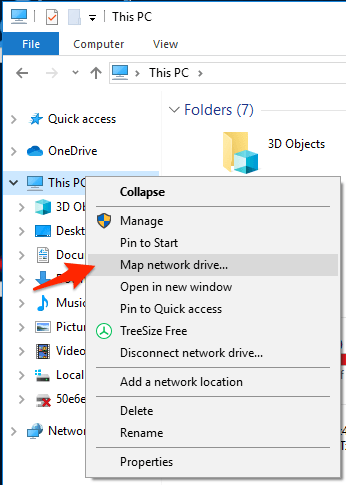
2. Click Map network drive... and in the dialog that opens, choose your drive letter.
3. In the folder input, type your user name and host name in the following pattern: \\sshfs\[sftpuser]@[sftphost].
For example: \\sshfs\mary@companysftp.com.
If you are using SFTP To Go, use the host name and username from your SFTP To Go credential here.
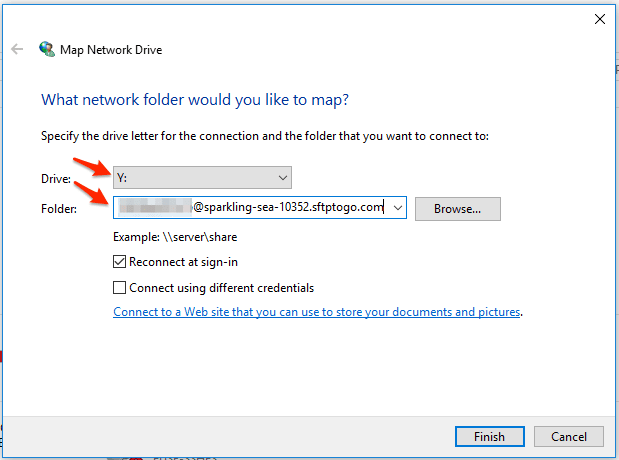
4. Click Finish and in the next dialog enter your password.
5. The new drive letter should now show up in your Windows Explorer and you can use it to access your SFTP server.
Map SFTP as a Windows 11 drive with private/public key authentication
If you’d like to use private/public key authentication, we recommend following these steps with SSHFS-Win Manager:
- Open SSHFS-Win manager and add a new connection by clicking
Add Connection, entering all of the required connection details. Then, clickSave.
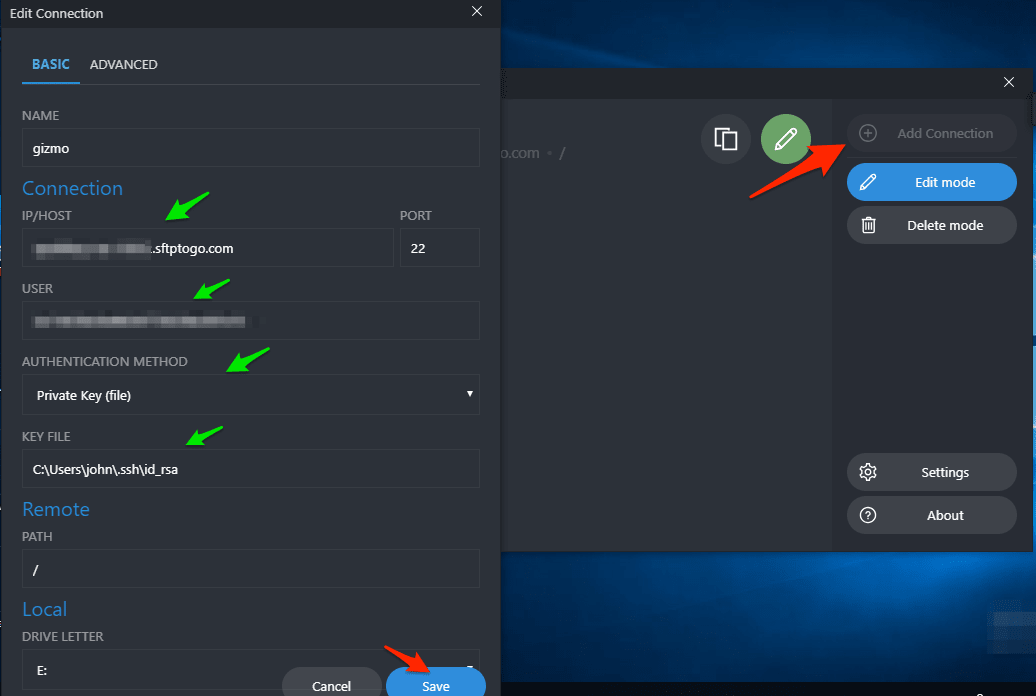
2. Click the connection to start it.
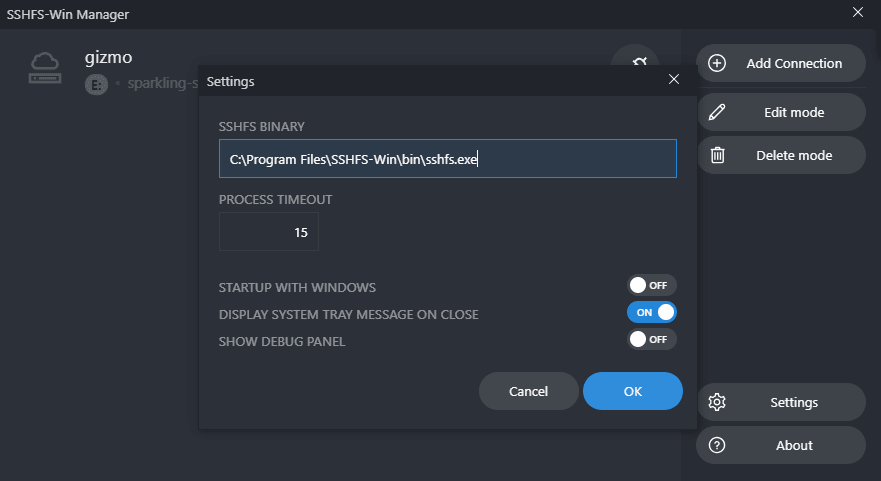
3. If the connection doesn’t start and there are no error messages, click Settings and ensure that the path to SSHFS Binary is set correctly. Repeat this step again to try the connection again.
How to unmap SFTP on Windows 11
- Open your Windows Explorer.
- Right click your mapped drive and click
disconnect.
That's all, folks!
If you’ve made it this far, then all the steps have been completed and you can rest your eyes! Fairly easy, right? Now go on and enjoy your easy access to files hosted on SFTP servers!
Explore What is SFTP? for more foundational knowledge and SFTP automation to reduce human error and streamline workflows with our case studies and guides.
Frequently asked questions
Can Windows 11 map SFTP as a drive natively?
No. Windows 11 does not natively map SFTP as a drive in File Explorer. To do that, you need a tool such as WinFsp together with SSHFS-Win.
How do I map SFTP as a drive in Windows 11 File Explorer?
Install WinFsp and SSHFS-Win, open This PC, click Map network drive, choose a drive letter, and enter your SFTP path in the correct SSHFS format. Then sign in with your SFTP username and password.
What path do I use to map an SFTP drive in Windows 11?
For a standard setup, use this format: \\sshfs\[sftpuser]@[sftphost]. If needed, SSHFS-Win also supports optional path and port values.
Can I use SFTP To Go to map SFTP as a drive on Windows 11?
Yes. If you use SFTP To Go, enter the host name and username from your SFTP To Go credential in the SSHFS path, then complete the connection with your password or configured key-based method.
Can I map SFTP with SSH keys instead of a password?
Yes. SSHFS-Win supports key-based authentication, and SSHFS-Win Manager can make that easier to manage. That is the better option if your SFTP setup uses private and public key authentication.
Why is my SFTP drive not connecting in Windows 11?
In most cases, the problem is an incorrect host name, username, password, key setup, or SSHFS binary path. If you are using SSHFS-Win Manager, check the connection details and confirm that the SSHFS Binary path is set correctly.
How do I unmap an SFTP drive in Windows 11?
Open File Explorer, right click the mapped drive, and click Disconnect. That removes the mapped SFTP drive from This PC.