

Follow this guide to sync any SFTP server to your remote SFTP To Go server using rclone, a handy open-source command-line tool for Windows, macOS, and Linux.
We’ve already explored many options for syncing your data storage to the remote SFTP To Go server: Chronosync, FreeFileSync, and GoodSync for macOS, Syncplify.me AFT and WinSCP for Windows, and more.
This time, let’s discuss how to sync any SFTP server to your SFTP To Go server. It’s a fairly common task, whether you are migrating from a legacy solution to a managed cloud SFTP or consolidating multiple feeds into one managed endpoint. And few tools are as good for the job as rclone.
This guide explains how to get started with rclone and build a safe and reliable one-way and two-way syncing workflow.
Rclone basics
Rclone is a command-line program to sync and transfer files between file servers: cloud-to-cloud, local-to-cloud, and cloud-to-local.
The program supports over 70 data storage providers, including Amazon S3, Dropbox, Google Drive, Hetzner Object Storage, SMB, and SFTP servers. This is one of the major benefits of rclone as compared to other common tools, such as rsync and OpenSSH’s scp utility.
Rclone supports parallel transfers that rsync doesn’t do in a single process, and bi-directional syncs that scp can’t handle at all.
Let’s get started.
What you’re syncing
For the purpose of this guide, we’ll be using two SFTP servers: a server in our local network as the source and a remote server as the destination. The local one is a simple OpenSSH server, the remote server is SFTP To Go running on top of Amazon S3 storage. Going forward, we’ll refer to them as the source remote and the destination remote.
Install rclone
Go to https://rclone.org/downloads/, download rclone for your operating system, and follow the installation instructions on that page.
Before you configure rclone
Syncing between two locations with rclone is straightforward:
rclone sync source:path destination:path [options]…where source and destination are configured remote storage endpoints, or remotes in rclone terminology.
To create these remotes, rclone needs the following details for both the source and the destination server: hosts, ports, user names, and authentication info.
Port 22 is the default one for SFTP. Use it for both the OpenSSH server and SFTP To Go. Let’s find out the rest.
You should already have all the other information about the source remote. To find all the details about your SFTP To Go server and user, follow these steps:
- Log in to the dashboard.
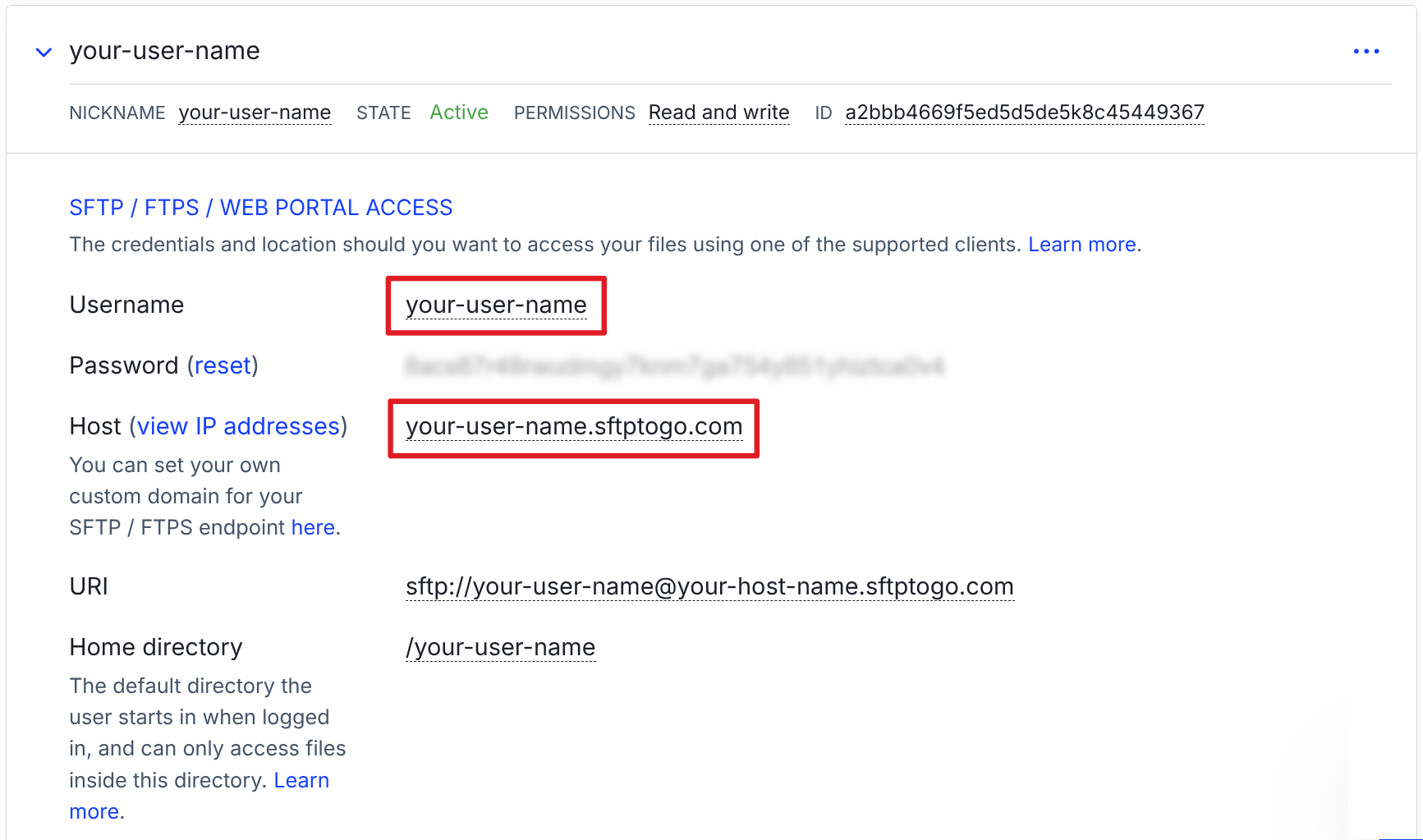
- You will need the following information: Username and Host. For authentication, see the section below.
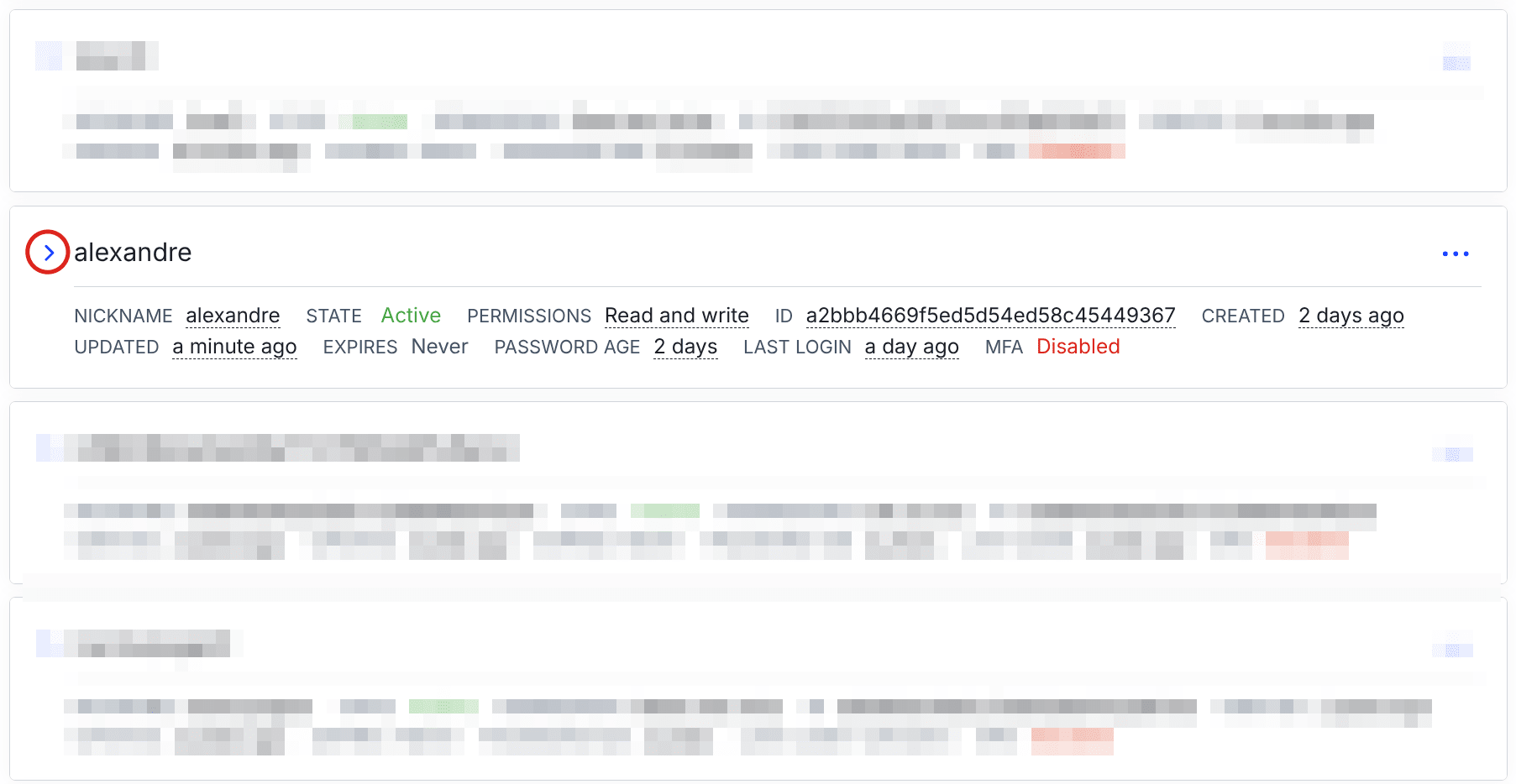
On the Credentials tab, locate the user whose credentials are used for this remote connection and click on the expand button.
Authentication methods
You can use either the password or the SSH key to authenticate on SFTP To Go. We recommend using SSH keys as they provide an additional layer of security. We’ll explain all further rclone configuration with that in mind. For now, please read the Using SSH Keys Authentication page in documentation to find out how to import your public key.
You are now ready to set up and use rclone.
Set up rclone remotes
Rclone operates on remotes — named configurations that tell rclone how to connect to a specific storage location. You will need two remotes: one for the server in the local network and one for SFTP To Go.
Each remote will have an alias like ”mysourceremote” and the details you’ve already collected: host name/address, username, port number, and authentication method. You can use a wizard to create each remote, but it’s easier to define all parameters in one command:
rclone config create mysourceremote sftp \
  host 192.168.0.21 \
  user sftpuser \
  pass theu8mie$v9U
This will create a new source remote with the host IP address, the username to connect to the SSH server, and the obfuscated version of thepassword for that user.
Now, create the remote for SFTP To Go:
rclone config create sftptogo sftp \
  host your-host-name.sftptogo.com \
  user your-user-name \
  key_file ~/.ssh/id_ed25519 \
  key_file_pass iebi"b$o0oSh
This command creates a new remote called “sftptogo” of “sftp” type, specifies the host and the user name, as well as SSH details: the private key, and the passphrase.
Every time you create a new remote, rclone outputs the details you provided.
[sftptogo]
type = sftp
host = your-host-name.sftptogo.com
user = your-user-name
key_file = /home/user/.ssh/id_ed25519
key_file_pass = *** ENCRYPTED ***
This helps double-check whether the details you submitted are correct.
Test connectivity
Let’s confirm that rclone can connect to both remotes. The easiest way to do that is to list all directories in the user’s home directory for each remote.
Start with the source remote:
rclone lsd mysourceremote:
         -1 2026-01-08 15:49:02        -1 .ssh
         -1 2026-01-08 16:04:14        -1 data
Repeat the same for SFTP To Go:
rclone lsd sftptogo:
          -1 1970-01-01 01:00:00        -1 data
Connection works for both remotes. Let’s learn how to copy files from one server to another with rclone.
One-way sync: SFTP to SFTP To Go
One-way synchronization means that rclone attempts to compare one remote directory to another and copies files from the source directory to the destination directory, but not vice versa.
To try that, let’s first list files in the source remote’s directory:
rclone ls mysourceremote:data/
  2024213 file_1
  2024213 file_2
Now, start with a simple copy of files from the source remote to the destination remote. When you move content between remotes for the first time, it’s always a good idea to do a dry run first:
rclone copy mysourceremote:data/ sftptogo:data/ --dry-run
2026/01/08 16:14:21 NOTICE: file_2: Skipped copy as --dry-run is set (size 1.930Mi)
2026/01/08 16:14:21 NOTICE: file_1: Skipped copy as --dry-run is set (size 1.930Mi)
2026/01/08 16:14:21 NOTICE:
Transferred:   	    3.861 MiB / 3.861 MiB, 100%, 0 B/s, ETA -
Checks:                 0 / 0, -, Listed 2
Transferred:            2 / 2, 100%
Elapsed time:         0.5s
The dry run revealed no issues, so it’s safe to actually copy the files:
rclone copy mysourceremote:data/ sftptogo:data/ -vThe command copies all files to the remote server’s directory, which you can verify with `rclone ls`:
rclone ls sftptogo:data/
  2024213 file_1
  2024213 file_2
Now let’s try the mirroring scenario where the contents of both directories should 100% match. Delete or move one of the files on the source remote and do a dry run first:
rclone delete mysourceremote:file_2 --dry-run
2026/01/08 16:28:33 NOTICE: file_2: Skipped delete as --dry-run is set (size 1.930Mi)
The command worked as expected, now repeat it without `--dry-run` and try syncing again:
rclone sync mysourceremote:data/ sftptogo:data/ -v
2026/01/08 16:29:34 INFO  : file_1: Copied (replaced existing)
2026/01/08 16:29:34 INFO  : file_2: Deleted
2026/01/08 16:29:34 INFO  :
Transferred:   	    1.930 MiB / 1.930 MiB, 100%, 197.677 KiB/s, ETA 0s
Checks:                 2 / 2, 100%, Listed 3
Deleted:                1 (files), 0 (dirs), 1.930 MiB (freed)
Transferred:            1 / 1, 100%
Elapsed time:        10.9s
You can see that rclone replaces the file that’s present on both remotes and deletes the file that is no longer present on the source remote. After that, the contents of both directories match perfectly.
One-way sync: SFTP To Go to SFTP
Let’s try the reverse and copy files from SFTP To Go to the original source remote. First, use the dashboard to upload `file_2` that we removed by mirroring directories, then run:
rclone copy sftptogo:data/ mysourceremote:data/ -v
2026/01/08 16:35:30 INFO  : file_2: Copied (new)
2026/01/08 16:35:30 INFO  :
Transferred:   	    1.930 MiB / 1.930 MiB, 100%, 145.714 KiB/s, ETA 0s
Checks:                 1 / 1, 100%, Listed 3
Transferred:            1 / 1, 100%
Elapsed time:         7.4s
Rclone skipped `file_1` that was already present on the source remote and copied file_2 that was missing.
Let’s try mirroring again. First, delete `file_2` on the SFTP To Go server. You can do that in the web dashboard or use this command:
rclone delete sftptogo:data/file_2
Now run `rclone sync` to mirror the two directories:
rclone sync sftptogo:data/ mysourceremote:data/ -v
2026/01/08 16:40:53 INFO  : file_2: Deleted
2026/01/08 16:40:53 INFO  : There was nothing to transfer
2026/01/08 16:40:53 INFO  :
Transferred:   	          0 B / 0 B, -, 0 B/s, ETA -
Checks:                 2 / 2, 100%, Listed 3
Deleted:                1 (files), 0 (dirs), 1.930 MiB (freed)
Elapsed time:         0.8s
Rclone deleted `file_2` on the source remote, and now the two remotes match. You can verify that with `rclone ls`:
rclone ls mysourceremote:data/
  2024213 file_1
Mirroring folders for common use cases
Now that you know how to sync two directories in one direction, let’s explore a more complex use case: mirroring multiple backup directories while excluding certain files.
Start with a simple mirroring of multiple directories. To do that, you can use the `--include` flag:
rclone sync mysourceremote: sftptogo: \
                                    --include "data/backup1/**" \
                                    --include "data/backup2/**" \
                                    --include "data/backup3/**" -v
In this case, rclone will include the three specified directories and all their contents on the source remote and sync with the contents of the user’s home directory on the SFTP To Go server.
But what if you want to skip temporary files with the `.tmp` file extension when syncing the remotes? In that case, it’s best to use the `--filter` flag instead.
The following command will sync multiple backup directories and exclude all files that end with `.tmp`:
rclone sync mysourceremote:data/ sftptogo:data/ \
                                    --filter "- */*.tmp" \
                                    --filter "+ backup1/**" \
                                    --filter "+ backup2/**" \
                                    --filter "+ backup3/**" \
                                    --filter "- **" -v
Note that in rclone, filters work on a "first match wins" basis. Rclone will not retroactively remove a `.tmp` file it has already copied, so the exclusion should be specified first. Here is the full logic of the command above:
- Exclude all files in `data/` that match the `*/*.tmp` pattern
- Include all files in `backup1` unless they match earlier exclusion rules
- Include all files in `backup2` unless they match earlier exclusion rules
- Include all files in `backup3` unless they match earlier exclusion rules
- Exclude everything not specified in the previous filters.
For details on using filters, please see the rclone documentation.
Two-way sync (bi-directional)
Two-way syncs attempt to keep two remotes in sync by detecting changes on both sides and reconciling them.
In a failover scenario, bi-directional sync can help reconcile changes after both servers have been active, but it requires careful configuration and conflict handling policies.
Rclone uses the `bisync` command for two-way syncing. Before you run it for the first time, you need to establish the baseline. To do that, run rclone with the `--resync` flag and don’t forget `--dry-run` to test first:
rclone bisync mysourceremote:data/ sftptogo:data/ \
  --checksum \
  --resync \
  --dry-run \
  --verbose
If rclone completes without errors and shows matching file counts on both sides, the baseline should be established. Run the command again without `--dry-run` to actually do that. Rclone will save the state to the rclone cache directory on the machine where the command is executed.
For recurring runs, use `rclone bisync` without the `--resync` flag. Going forward, you will only need it in the following cases:
- A sync fails with "Bisync critical error"
- File counts diverge unexpectedly
- After manual changes on both sides
You can also use various safety mechanisms built into rclone: apply conflict resolution policies, backup conflict files, and abort syncing after too many deletes. Here is an example:
rclone bisync mysourceremote:/shared sftptogo:/shared \
  --checksum \
  --max-delete 50 \
  --conflict-resolve larger \
  --backup-dir1 mysourceremote:/conflicts-$(date +%Y%m%d) \
  --backup-dir2 sftptogo:/conflicts-$(date +%Y%m%d) \
  --verbose
In this case, rclone will abort syncing after 50 deletes (to prevent accidental, large-scale data loss during a sync), prefer larger files in case of conflicts, and create backups of conflicted files on both servers. Note that dated backup directories tend to pile up, so remember to clean these up periodically.
Known limitation: Two-way sync and S3-backed timestamps
By now, you may have noticed the use of the `--checksum` flag for bi-directional syncs. Here is why it’s important.
Rclone relies on file timestamps by default. However, SFTP To Go uses Amazon S3 as the file storage backend, and S3 famously doesn’t update timestamps for existing files. This makes it nearly impossible for rclone to determine whether a file on an S3-based remote server has actually changed.
There are two ways to deal with that:
- With the `--checksum` flag, rclone will calculate and compare hashes for files with matching names and locations.
- With the `--size-only` flag, rclone will compare file sizes to determine whether a file on one of the remote servers has changed.
The `--size-only` method is faster yet more prone to mistakes. Imagine a CSV file with financial data where six digits were replaced with other six digits. The actual data has changed, but the file size hasn’t, so rclone will skip that file.
The `--checksum` method is preferable, because even if the file size is the same, the actual content has changed, so the hash will not be the same. Thanks to that, rclone will copy the changed file to the other remote.
Scheduling and automation
You can schedule automatic syncs between SFTP servers on Windows, macOS, and Linux using built-in tools.
cron
Cron is the standard UNIX utility for scheduling tasks. It’s available on both Linux and macOS, although newer solutions exist for both operating systems: systemd timers for Linux and launchd for macOS.
Let’s schedule a bi-directional sync every night at 4 am. Run this command in the terminal window:
crontab -eThis will open the default text editor. Paste the following entry, then save and exit:
0 4 * * * /usr/bin/rclone sync mysourceremote: sftptogo: --checksum --no-update-modtime --log-file=/var/log/rclone-sync.logThe changes will take effect almost immediately as the cron daemon automatically detects file changes.
Windows Task Scheduler
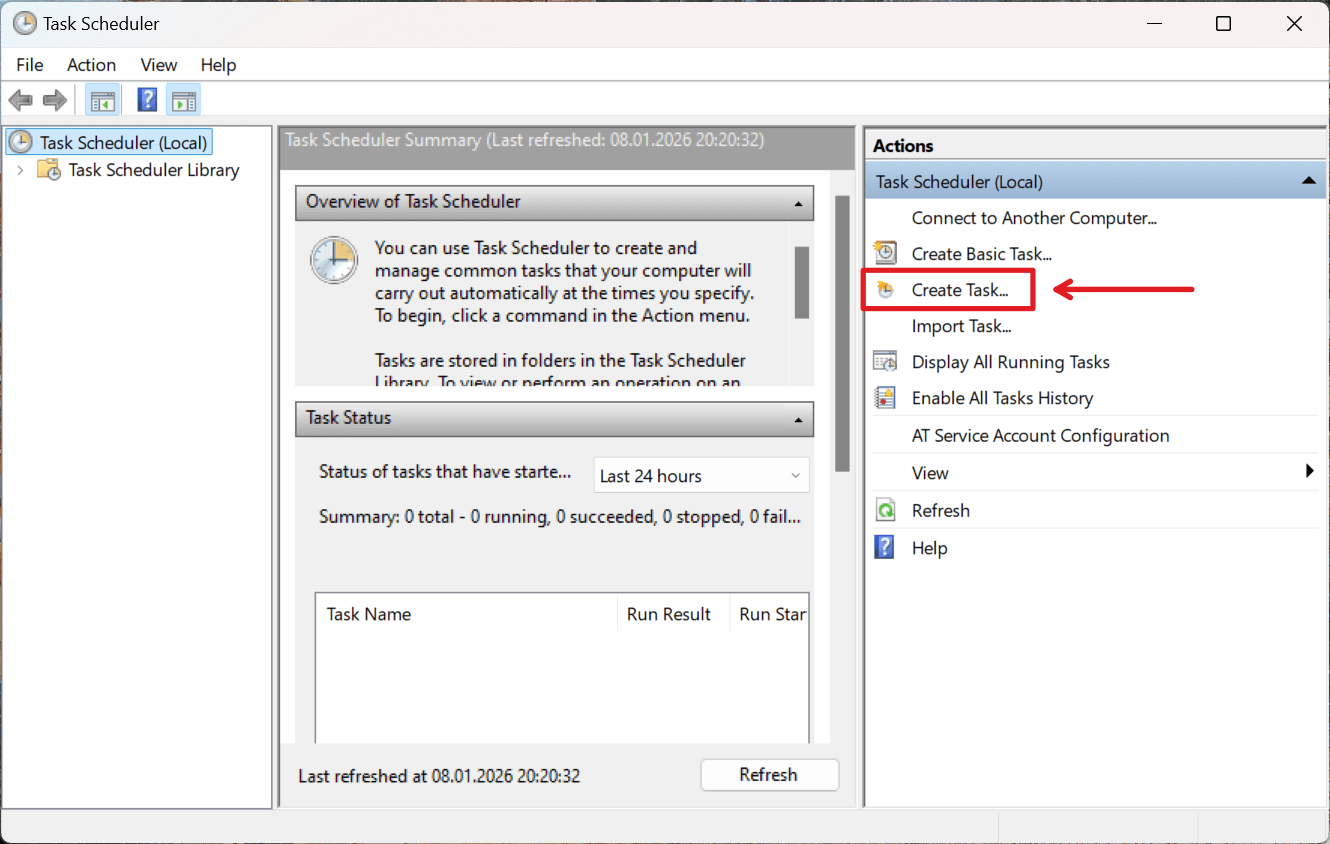
Let’s create the same task for Windows Task Scheduler. Press Win+R, type `taskschd.msc`, and press Enter to open the Task Scheduler.
Click on Create Task on the right.
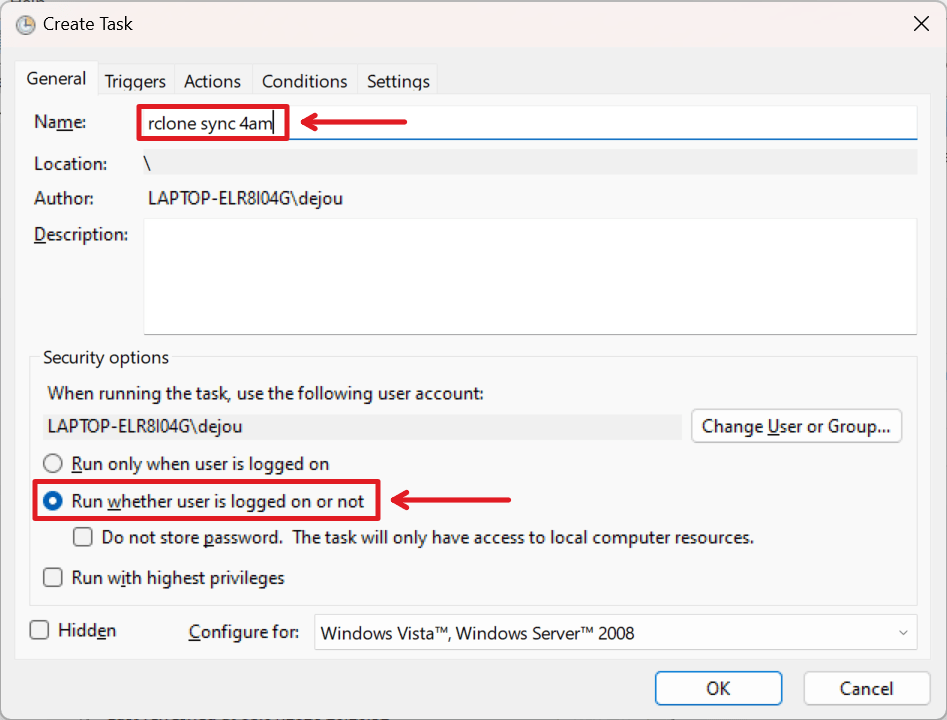
Give the new task a name and switch to running the task, whether the user is logged in or not:
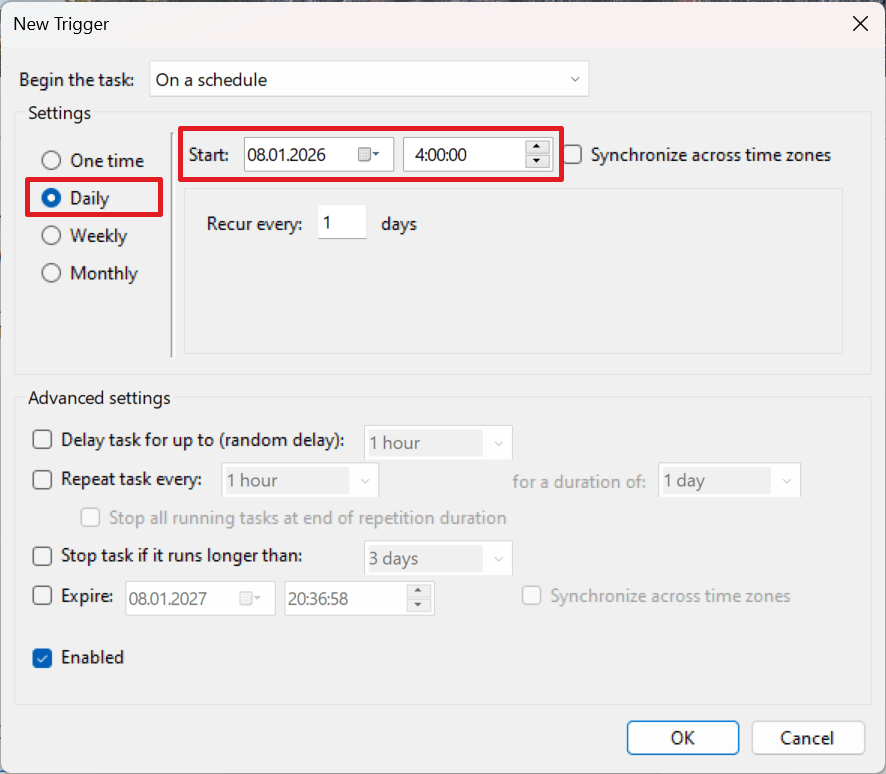
Go to the Triggers tab and click on the New button to create a new trigger. Set the frequency to Daily and the time to 4 am, then click on OK.
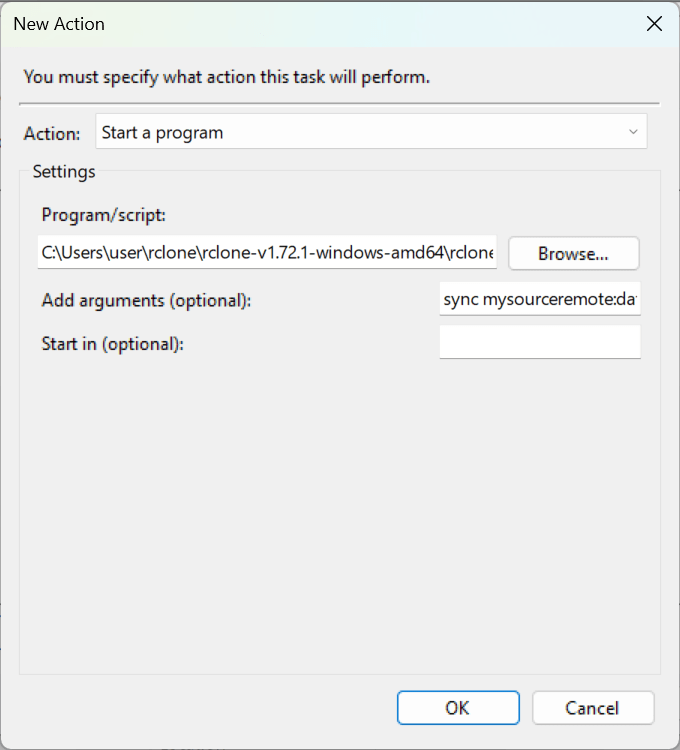
Next, go to the Actions tab, click on New, then click on Browse to point Task Scheduler to the `rclone.exe` file and insert `sync mysourceremote:data/ sftptogo:data/ --checksum --no-update-modtime --log-file=C:\logs\rclone-sync.log` into the Add arguments (optional) field.
Finally, click on OK to finalize adding a new scheduled task.
Logs and operational checks
Keeping a log of all operations helps with troubleshooting issues, especially when syncs are scheduled, and you aren’t there to watch it happen. Use the `--log-file` flag and specify the path to a log file:
rclone sync mysourceremote:data/ sftptogo:data/ \
    --checksum \
    --log-file=/var/log/rclone.log
When you analyze logs, look for valuable information, such as:
- Sync success rate: Track exit codes where 0 equals success and investigate after 2-3 consecutive failures.
- Transfer statistics: Look for sudden drops in the number of files transferred, data volume transferred per sync, etc. This may indicate checksum issues.
- Sync duration: Investigate if duration exceeds 2-3 times your baseline without an obvious reason, such as a rapidly growing dataset.
- Error patterns: Look for recurring errors like connection timeouts, authentication failures, or permission denials.
- Time since last sync: Catch scheduling failures or hung processes.
- File count drift: Compare source vs. destination file counts. Depending on the use case, discrepancies over 5% may indicate sync failures or file deletion issues.
- Storage space: Monitor available space on both the source and the destination servers. Try avoiding <20% free disk space situations.
- Checksum failures: Watch for checksum mismatches. These typically suggest data corruption, storage issues, or network problems.
Wrapping up
Rclone is a versatile tool built to deal with the real-life complexity of syncing data. It’s reliable for moving terabytes of data around and flexible enough for working around network and system constraints and automating backups between any SFTP endpoints.
Frequently asked questions
What are the recommended rclone flags to use?
- Perform dry runs with
--dry-runthe first time you run a command that may result in data deletion. - Always save logs with
--log-file=PATH/FILE. - When you sync to an S3-based data storage, always use
--checksum. Only use--size-onlywhen the files will be added and/or deleted rather than updated.
Is --checksum slower than comparing by file sizes?
Yes. Calculating a checksum involves reading and hashing file contents. This takes time, more so for larger files. However, it’s necessary for reliable syncing of text-based files that have a higher chance of having different contents and the same file size.
How do I handle large files when syncing with checksums?
You can use two additional command-line flags for rclone to deal with that.
--transfersenables parallel transfers, so multiple files are transferred at the same time. Rclone defaults to four transfers. You can change that to a different number, e.g,--transfers=2.--checkersruns multiple checksum calculators in parallel and defaults to eight checkers. You can set a different number of checkers, e.g.,--checkers=6.
What are good conflict resolution strategies?
Because of S3 timestamping specifics you can’t use the --conflict-resolve newer strategy. This leaves the remote preference as the second best option.
The --conflict-resolve path1 flag will instruct rclone to always prefer the version in the source remote, while the --conflict-resolve path2 flag will tip the scale towards the version on the destination remote.
What are good safety measures for dealing with potential file conflicts?
Whichever conflict resolution method you choose, this will overwrite files without a chance for recovery. So it’s a good idea to backup conflicting files to be on the safe side.
To do so, use --backup-dir1 mysourceremote:/conflicts-$(date +%Y%m%d) for the source remote and --backup-dir2 sftptogo:/conflicts-$(date +%Y%m%d) for the destination remote.
Note that if you are storing large media files, such as raw video footage or big data exports, you need to keep sufficient free disk space.
What's the best sync strategy for directories with thousands of small files?
You can play with different values for --checkers and --transfers to find the combination that works best without overwhelming the servers. Try using time to compare results for these combinations on a test sampling of data:
time rclone sync source: dest: --checksum --checkers=8 --transfers=4
time rclone sync source: dest: --checksum --checkers=16 --transfers=8
time rclone sync source: dest: --checksum --checkers=32 --transfers=16
How does SSH make connections safer?
Secure Shell (or SSH) encrypts everything that passes between two computers over a network. That includes commands, output, file transfers, and even authentication credentials.
Without SSH, this data would travel in plaintext, making it trivial for anyone monitoring network traffic to intercept passwords and sensitive information.
Why do I need to specify the location of the known_hosts file when configuring an SFTP remote?
Rclone doesn’t attempt to verify the remote host’s authenticity by default. It will happily sync data between two remotes as long as authentication works, not knowing whether any of the remotes are legit.
Explicitly specifying the location of the known_hosts file forces rclone to attempt to match the remote’s public key to its public key as recorded in known_hosts.