
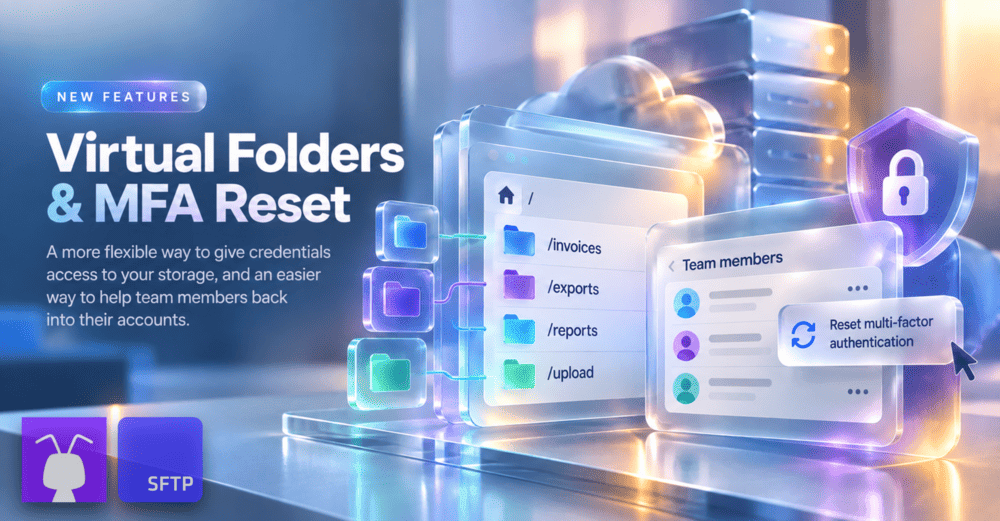
We’ve got two sparkling new SFTP To Go features to share, including one that opens up a fresh way to organize storage access.
Virtual Foldersmake it possible to give credentials access to several separate storage locations without exposing the folders and directories in between.Team member MFA resetgives organization owners a secure way to help someone regain access when they can no longer use their MFA method.
There’s plenty to explore, particularly with Virtual Folders. Let’s take a closer look.
New feature: Virtual Folders
Your storage can be complicated. Their view doesn’t have to be.
Until now, SFTP To Go credentials have been bound to a single home directory. That works perfectly well when everything those credentials need sits beneath the same folder. But storage isn’t always arranged around the people and applications that need to access it.
A client might need invoices from one part of your storage and exports from somewhere completely different. An integration might only need one deeply nested folder. Or you might want to reorganize your storage without changing a path that an external system has been using for years.
Virtual Folders give you a much more flexible way to handle all of that.
Instead of assigning credentials to one home directory, you can create the folder structure you want them to see and map each Virtual Folder to its real location in your storage.
So this:
/finance/2026/invoices
can simply appear as:
/invoices
And two completely unrelated locations:
/finance/2026/invoices
/analytics/exports/acme
can appear side by side as:
/invoices
/exports
That’s the entire view presented to those credentials. They can’t navigate upwards into /finance, /analytics, or anything else you haven’t mapped for them.
One set of credentials, several separate locations, each virtual folder with its own permissions
This is where things get particularly useful.
One set of credentials can access multiple unrelated storage locations without being given access to a shared parent folder just to reach them. Importantly, each Virtual Folder also has its own permissions. You could make /reports read-only, for example, while allowing uploads to /incoming.
Virtual Folders work over SFTP, FTPS, and the Web Portal, so the same mapped structure is available whichever of those access methods the credentials use. You decide what they see, where each folder points, and what they’re allowed to do there.
Keep external paths stable while your storage changes
The folder presented to a user or application doesn’t have to resemble its real storage path either.
Say an application has been configured to send files to:
/upload
Behind the scenes, /upload might point to a much deeper internal path.
If you reorganize your storage later, you can simply repoint the Virtual Folder. The application carries on sending files to /upload, so there’s no need to change its configuration just because something changed on your side.
That gives you the freedom to reorganize the storage underneath a connection while keeping the view presented to the connecting user or application consistent.
Where can Virtual Folders help?
There are plenty of possibilities:
- Give users private and shared folders: Give someone their own private folder alongside folders shared with other users, all within the same set of credentials.
- Connect internal teams with the right clients: Give individual employees or groups access to folders belonging to multiple clients, without opening up unrelated storage.
- Set different access requirements: Give the same credentials read-only access to one folder and different permissions for another, depending on what they need to do in each location.
- Make storage easier to understand: The same underlying folder can be presented under different names to different credentials. For example, a folder shared between Customer X and Vendor Y could appear as
/vendor-y to Customer Xand/customer-x to Vendor Y, so each sees the shared location in the context that makes sense to them.
Essentially, you can organize storage in the way that works for you while presenting each user or application with the folders that make sense to them.
Setting up Virtual Folders
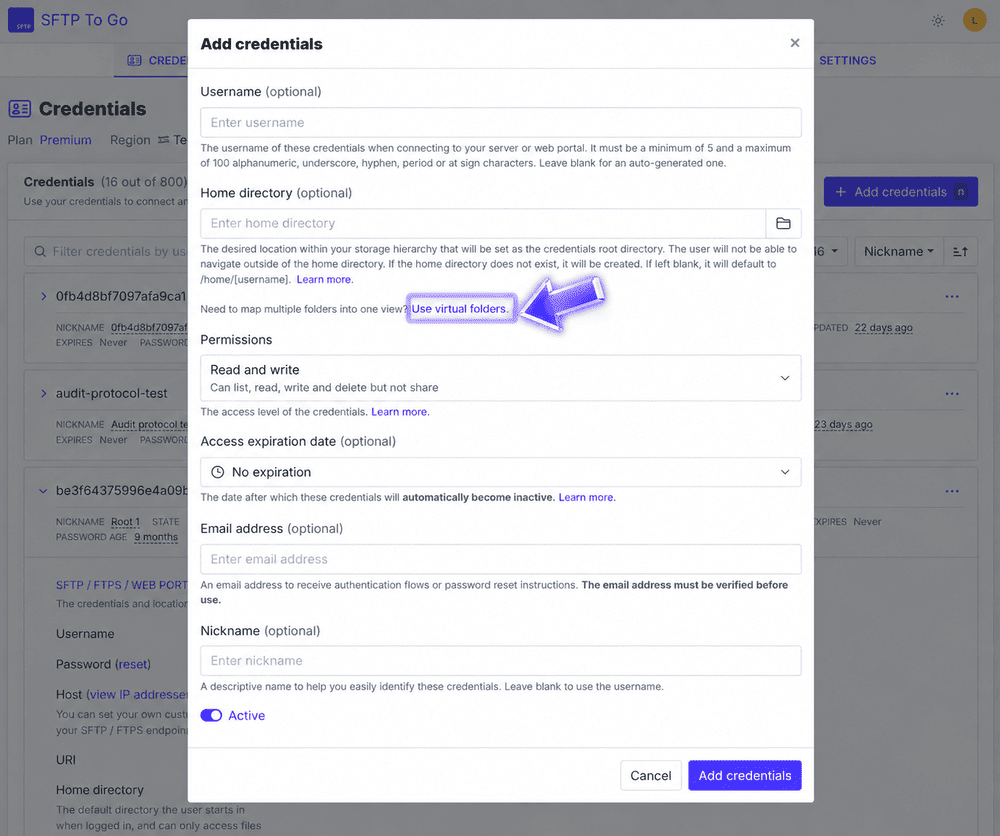
When creating or editing credentials, choose Use virtual folders instead of a single home directory.
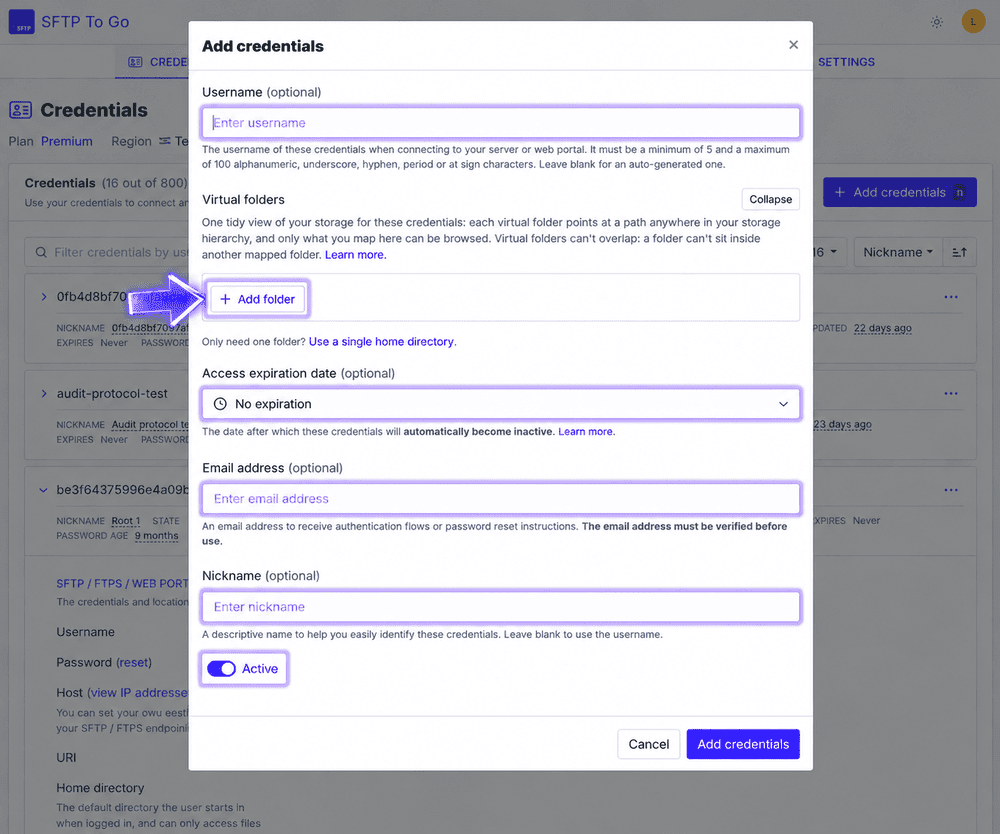
For each Virtual Folder, set:
Folder: The name the credentials see, such as/invoices.Path: The real storage location it points to, such as/finance/2026/invoices.
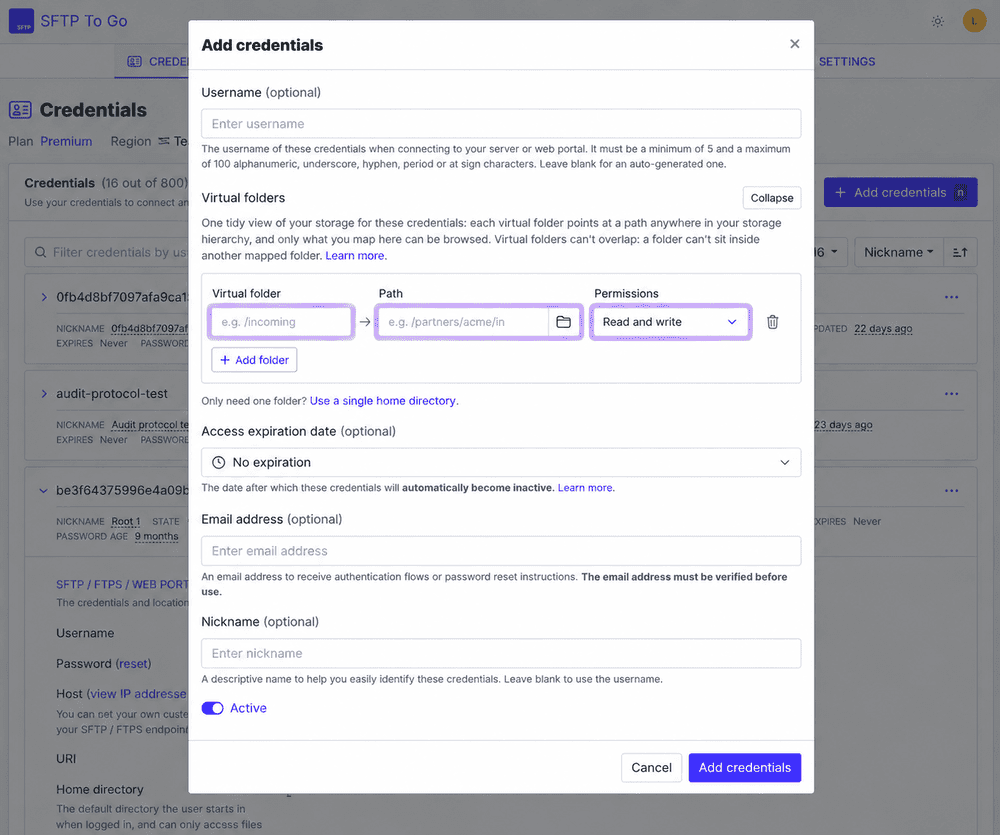
Permissions: What those credentials can do inside that folder.When credentials use Virtual Folders, permissions are defined on the individual folders rather than at credential level. ChoosingNonecan suspend access to a mapped folder without removing it, whileFull accessalso allows the user to create share links for files inside that folder.
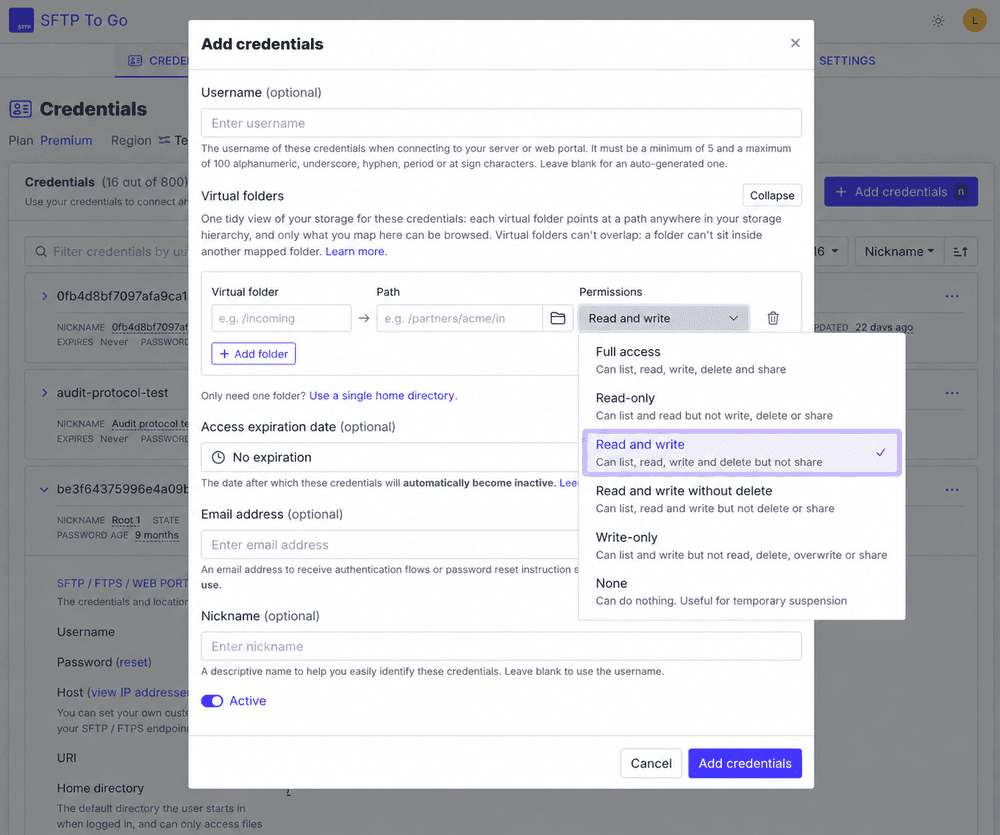
Need another one? Click Add folder and map the next location. When you’re all done, click Add credentials.
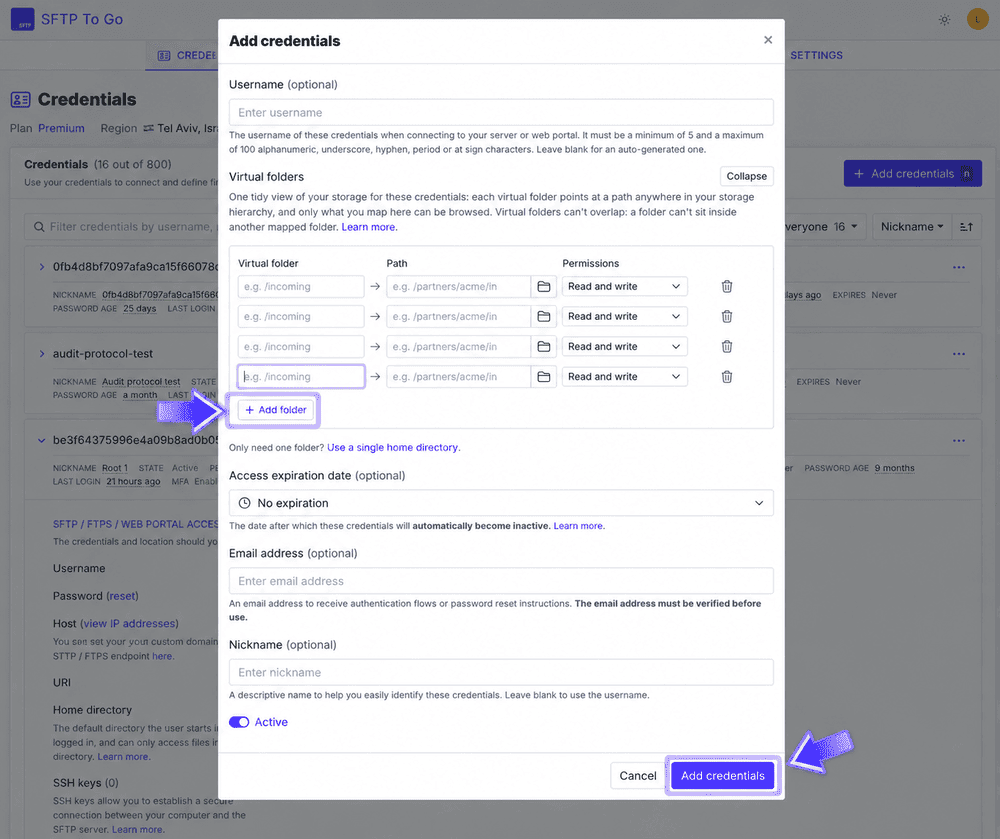
The default is still a single home directory, and your existing credentials aren’t affected.
There are a few additional rules around overlapping folders, root mappings, permissions, and other configuration details, so we’ll leave those to the Virtual Folders documentation, where you’ll find the full setup instructions and limitations.
New feature: Reset a team member’s MFA
Our second update is a smaller one, but a handy addition for organization owners. We actually rolled this out with our Native File Automations update, but totally forgot to mention it!
If a teammate loses access to the method they use for multi-factor authentication, another organization owner can now reset their MFA so they can set it up again.
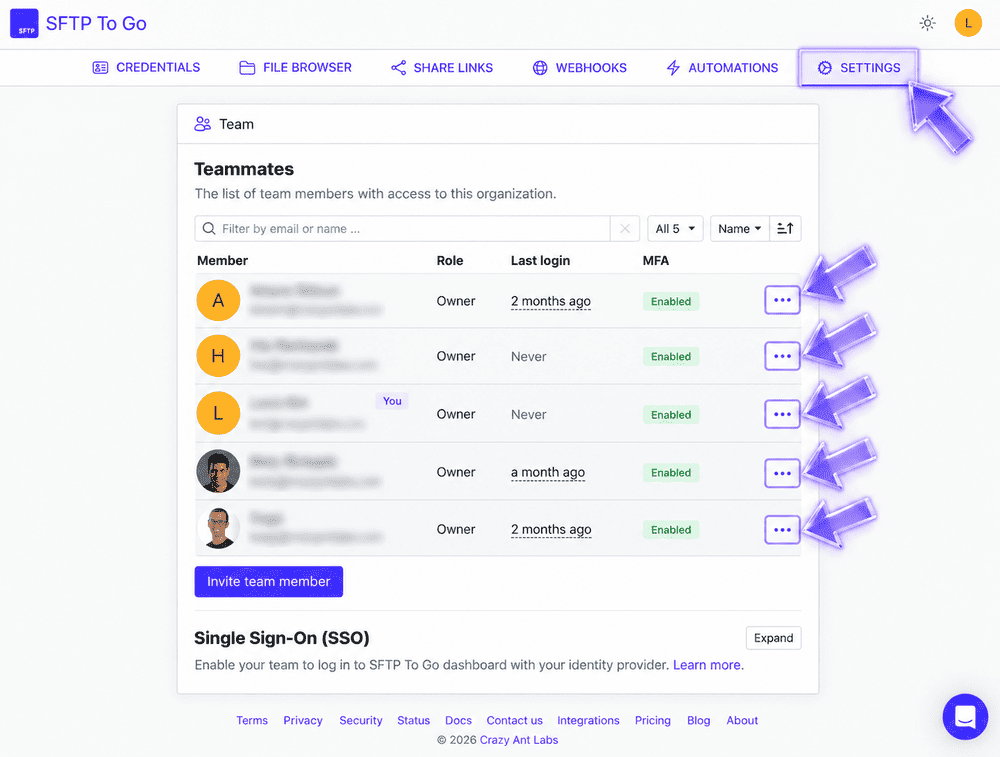
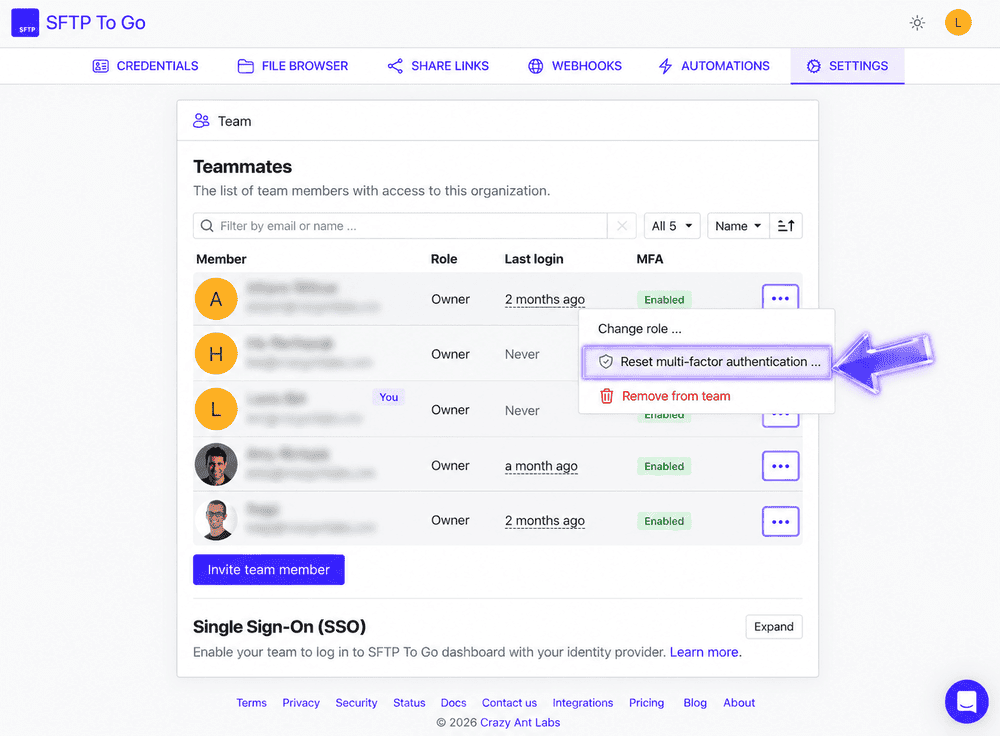
Go to Settings>Teammates, and open the menu ... next to the team member.
Select Reset multi-factor authentication. All of that member’s existing MFA methods will stop working immediately, and they’ll be asked to configure MFA again the next time they sign in.
Passkeys aren’t affected, because they’re managed separately. The teammate and every other owner of the organization are also notified by email whenever an MFA reset takes place.
There’s an important security precaution here: always confirm outside SFTP To Go that the reset request really came from the team member before you go ahead. You can reset your own MFA from your Account Settings page.
You’ll find the complete process and security guidance in our documentation on resetting a team member’s multi-factor authentication.
Give the new features a try
Both updates give you more control over different parts of SFTP To Go: Virtual Folders over how credentials see and access your storage, and MFA reset over what happens when a team member gets locked out of their authentication method.
Virtual Folders are the much bigger change here, and we’re looking forward to seeing the setups people build with them. If you’re ready to start mapping your own, head over to the Virtual Folders documentation for the full details.
Our recent feature updates
We’ve been the busiest ants. Missed one of our recent updates? Here’s what else we’ve added to SFTP To Go:
- Native File Automations
- Log Streaming, Webhook Retries & Usage Metrics
- Enforce MFA for Web Portal Credentials
- Historical Usage Data
- Audit Logs Export for Compliance & Insight
- Email-Associated Credentials, Magic Code Login & MFA
- Secure Share Links for Easy File Sharing
- Custom Domains Support
- Enhanced File Browser & Credentials List Filtering
- Download Notifications
- Permission Options & Audit Logs
- Email Notifications
We value your feedback
We’d really like to hear what you think of the new features, particularly how you’re putting Virtual Folders to work.
If you have feedback, questions, or ideas for what you’d like to see next, send us a message through the in-app chat. We’re listening.